
Choosing business software feels like a big decision because it is one: the wrong tool costs you money, time, and your team’s patience. This guide gives you a simple, seven-step process for picking software that fits how your small business really works — plus the features, costs, and warning signs to check before you commit.
The common assumption
The best software is the one with the most features, the most reviews, or the biggest brand name.
What actually matters
The best software is the one your team will use every day, that connects to your other tools, and that you can leave without losing your data.
What Is Business Software and Why Does a Small Business Need It?
Business software is any program or online service that helps you run your company: sending invoices, tracking customers, managing projects, keeping the books, or simply keeping your team in sync. Most of it today is cloud-based, which means you pay a monthly subscription and log in from any device instead of installing anything.
Small businesses need it for a practical reason: you have fewer people doing more jobs. Good software takes over the repetitive work — reminders, data entry, follow-ups — so the owner and team can spend time on customers. If you want a reliable starting point for the basics of running and managing a company, the U.S. Small Business Administration’s business guide is worth a read.
The fit test: Write down the three tasks you or your team repeat every single day. If a tool doesn’t make at least two of them easier in the first week, it’s the wrong tool — however good the reviews are.
Common Types of Business Software for Small Companies
Most tools you’ll meet fall into a handful of categories. Knowing which one you actually need keeps you from buying a heavy platform to solve a light problem.
| Software type | What it does | Typical example |
|---|---|---|
| Accounting | Bookkeeping, expenses, tax reports, bank feeds | QuickBooks, Xero |
| Invoicing & payments | Billing clients, reminders, online payments | FreshBooks, Wave |
| CRM | Tracks leads, customers, and sales conversations | HubSpot CRM, Pipedrive |
| Project management | Tasks, deadlines, and team workload | Trello, Asana |
| Communication & docs | Email, chat, video calls, shared files | Google Workspace, Microsoft 365 |
| Automation | Connects tools so data moves without manual work | Zapier |
Most small businesses don’t need all six on day one. Start with the area that costs you the most time or causes the most mistakes, and add from there.
How to Choose Business Software: Step by Step
This is the repeatable process that works whether you’re looking at a $10-a-month app or a full platform. Follow all seven steps in order and you’ll avoid most of the expensive mistakes.
- Define the problem first. Write one sentence: “We need software to ___ so that ___.” Vague goals lead to vague purchases.
- List your must-haves and nice-to-haves. Must-haves are things you can’t work without. Everything else is a bonus and should never decide the purchase.
- Set a realistic budget. Include per-user fees, add-ons, and setup time — not just the headline price (more on this below).
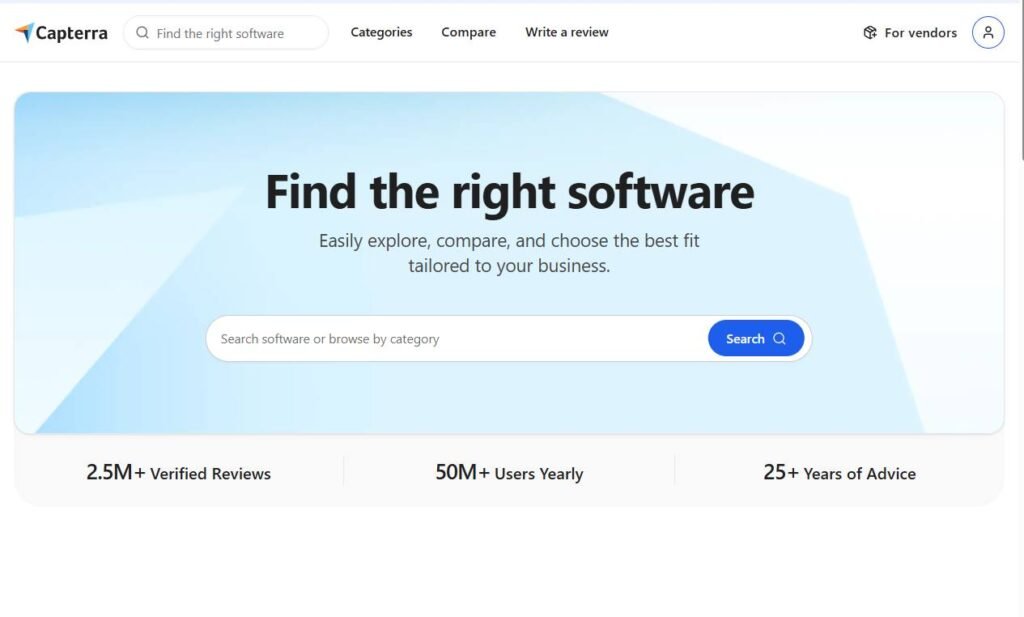
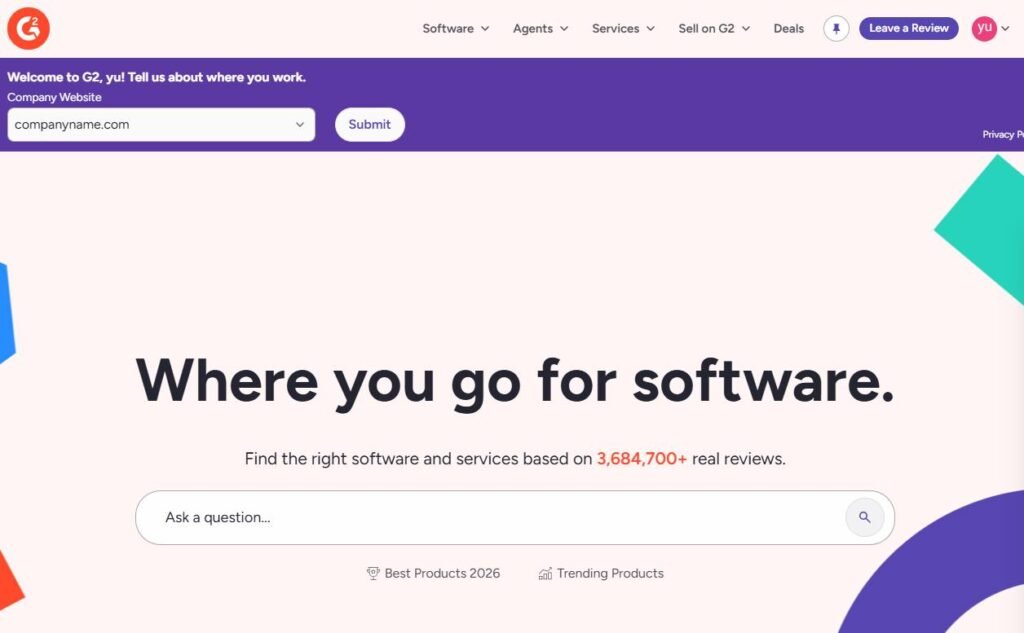
- Shortlist three options, no more. Use review sites like Capterra and G2 to find candidates, then read the lower-star reviews — they reveal the real problems.
- Check integrations and data export. Confirm the tool connects to what you already use and that you can export your data in a standard format.
- Trial with real work. Use a free trial or free plan with an actual customer list or live project, not demo data.
- Decide, roll out, and review. Pick the winner, train the team, and schedule a check-in after 30 to 90 days to confirm it’s actually saving time.
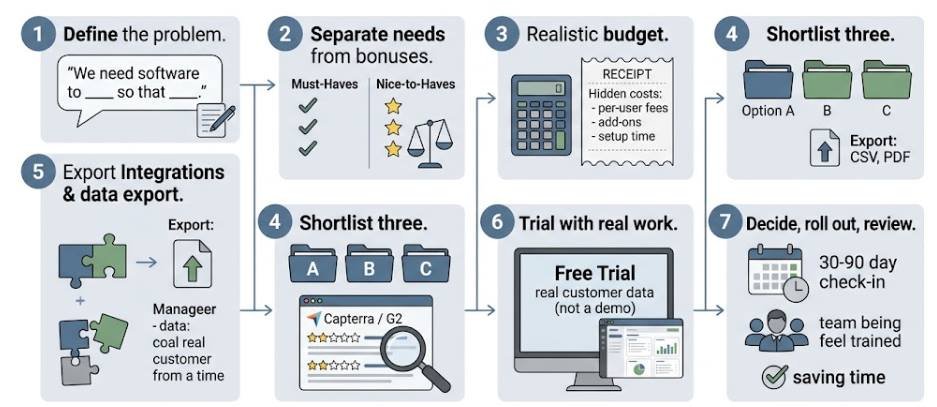
None of these steps need technical skill. They need honesty about how your business works today — which is the part most buyers skip when they’re excited about a shiny new tool.
Key Features to Look For
Feature lists are long, but only a few features separate a good small-business tool from a frustrating one. Check these before you look at anything else:
- Ease of use: If a new employee can’t figure out the basics in an hour, adoption will suffer.
- Mobile access: A working mobile app matters if you or your staff are often away from a desk.
- Integrations: Native connections to your email, calendar, payment, and accounting tools.
- Reporting: Simple dashboards that answer your actual questions, such as who owes you money or which leads are stalling.
- Scalability: Pricing and features that still make sense when you double your team or customer list.
- Support: Real humans, reasonable response times, and a decent help center.
Free vs. Paid Business Software
Free software can be a smart starting point, especially for solo owners and tiny teams. Plenty of well-known tools, including Trello and HubSpot’s CRM, offer free plans. Just be clear about what you’re trading off.
What free plans give you
- Core features to test a workflow at no cost
- Zero financial risk while you learn
- Enough capacity for a very small team
What you usually give up
- Advanced reporting and automation
- Priority support
- User limits, storage caps, or branding removal
A good rule: start free, and upgrade only when you hit a specific wall that costs you more than the subscription would.
All-in-One vs. Separate Tools
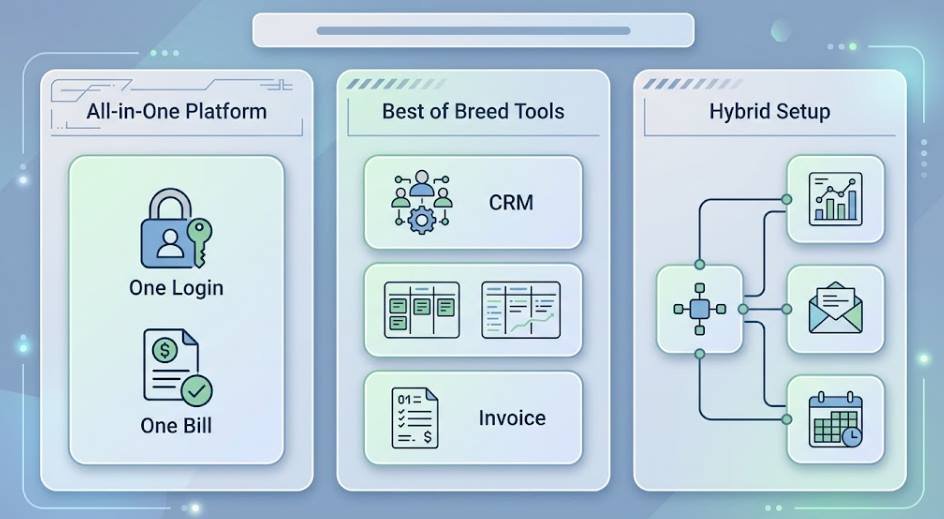
An all-in-one platform gives you one login, one bill, and data in one place. Separate tools let you pick the best option for each job. Neither is automatically better — it depends on your size and how much admin you can tolerate.
| Approach | Best for | Main trade-off |
|---|---|---|
| All-in-one platform | Solo owners and teams under about 10 people | Individual features can be average |
| Best-of-breed tools | Teams with specific, demanding needs | More subscriptions and integrations to manage |
| Hybrid (core + specialists) | Most growing small businesses | Needs a little planning up front |
If you go with separate tools, an automation service like Zapier can connect them so information flows without copy-and-paste.
Best Business Software by Category
There’s no single “best” tool, only the best fit for your business. These are widely used options worth shortlisting in each category — always confirm current features and pricing on the vendor’s own site before deciding.
Accounting
QuickBooks is the most common choice and is familiar to most accountants, which makes hand-offs easy. Xero is a popular alternative with a clean interface and strong bank-feed features. Ask your accountant which they prefer before you choose.
CRM
HubSpot CRM is a common starting point thanks to its free tier. Pipedrive is built around a visual sales pipeline, and Zoho CRM suits businesses that want a lot of customization at a modest price.
Project Management
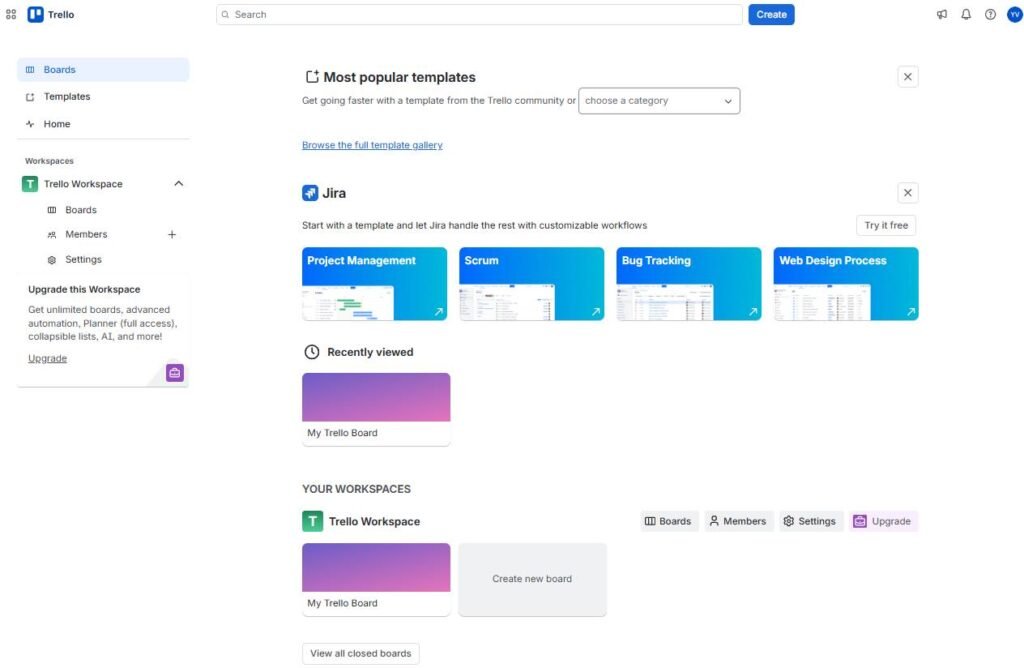
Trello is the simplest option, using visual boards. Asana and monday.com offer more structure for teams with many tasks and deadlines, while ClickUp packs in a wide feature set for teams that like to customize.
Invoicing
FreshBooks is designed around service businesses and freelancers, while Wave is known for free invoicing and accounting tools. If you already take card payments, Square Invoices and Stripe Invoicing are worth a look too.
Best Software for a Very Small Business or Solo Owner
If you’re a one-person business, every extra tool competes for your limited attention. The winning setup is usually three or four simple tools:
- Email, calendar, and documents: Google Workspace or Microsoft 365.
- Invoicing and basic bookkeeping: a free or low-cost tool such as Wave.
- Task tracking and notes: a simple board in Trello or pages in Notion.
- Passwords: a password manager like Bitwarden, so security doesn’t depend on memory.
Resist the urge to stack tools “for later.” You can always add a CRM or project tool when the problem actually shows up.
Total Cost: What You’ll Really Pay
The price on the pricing page is rarely the full story. Before you commit, add up every cost that applies:
| Cost type | What to check | Why it matters |
|---|---|---|
| Subscription | Per-user vs. flat pricing; monthly vs. annual | Per-user costs grow with every hire |
| Add-ons | Features that sit in higher tiers | The tool you need may be the pricier plan |
| Setup & migration | Importing data, configuration, consultant fees | Can exceed the first year’s subscription |
| Training | Hours your team spends learning | Time is a real cost for a small team |
| Integrations | Paid connectors or automation plans | Small fees add up across tools |
| Switching cost | Export limits, contract length, cancellation terms | Hard-to-leave tools cost more over time |
Quick rule: Multiply the monthly price by the number of users and by twelve. If that number surprises you, look at the cheaper tier or a different tool before you sign up.
Security, Integrations and Data Export
These three checks are easy to overlook and painful to fix later. Your business software will hold customer details, financial records, and internal documents, so treat security as a buying criterion, not an afterthought.
- Security basics: Look for two-factor authentication, encryption, user permission levels, and a clear privacy policy. The NIST Small Business Cybersecurity Corner and the FTC’s cybersecurity guidance for small businesses explain what good practice looks like in plain language.
- Integrations: Check the vendor’s integration directory for the exact tools you use. “Coming soon” is not a feature.
- Data export: Confirm you can download your data in a standard format such as CSV, and that export isn’t locked behind a premium plan.
If you handle customers’ personal data, also check where the vendor stores it and whether the rules in your region, such as GDPR or local privacy laws, apply to you.
How to Trial Software and Get Your Team to Use It
The best software in the world fails if nobody uses it. Adoption is a people problem, so plan for it from the start.
- Pick a small pilot group. One or two people test the tool with real tasks for one to two weeks.
- Define success in advance. For example: “Invoices go out in half the time” or “No leads fall through the cracks.”
- Involve the people who’ll use it. Staff who help choose the tool are far more likely to adopt it.
- Roll out gradually. Move one workflow at a time instead of switching everything in a weekend.
- Train briefly and often. A short walkthrough plus a one-page cheat sheet beats a long manual.
- Retire the old method. If people can still use the spreadsheet, they will.
Common Mistakes to Avoid
Mistakes that cost money
- Buying for features you’ll never use
- Paying annually before testing
- Ignoring per-user pricing as you grow
- Forgetting to cancel unused subscriptions
What to do instead
- Start from your must-have list
- Run a monthly plan for 2–3 months first
- Model your cost at double your team size
- Review all subscriptions every quarter
Other frequent errors include skipping the data-export check, choosing a tool your accountant can’t work with, and never asking the team what’s actually slowing them down.
Software Selection Checklist
Copy this list and run every candidate through it. If a tool fails more than two items, move on.
- ☐ It solves one clearly defined problem we wrote down
- ☐ All our must-haves are included in the plan we can afford
- ☐ Total cost (users, add-ons, setup, training) fits the budget
- ☐ It integrates with the tools we already use
- ☐ We can export our data in a standard format
- ☐ It offers two-factor authentication and user permissions
- ☐ It works well on mobile if we need it
- ☐ Support is responsive and the help center is useful
- ☐ We tested it with real data for at least a week
- ☐ The people who will use it daily approve
Frequently Asked Questions
What is the best software for a small business?
There is no single best option, because it depends on what you need to do. Most small businesses begin with an email and document suite such as Google Workspace or Microsoft 365, then add accounting, invoicing, and a CRM as they grow. Choose by workflow, not popularity.
What software does every small business need?
At minimum: email and file storage, a way to invoice and track money (accounting software), and a method to track customers or leads, even if that’s a simple CRM. A password manager is also a smart, low-cost addition. Everything else depends on your industry and team size.
How much should a small business spend on software?
There’s no universal percentage, so base it on value rather than a fixed number. A tool is worth paying for if it saves more time or money than it costs. Add up subscriptions, add-ons, and training, then review the total every quarter and cancel anything that isn’t earning its place.
Is free business software good enough?
Often yes, especially for solo owners and very small teams. Free plans usually cover core features but limit users, storage, automation, or support. Use them to test a workflow, and upgrade only when you hit a specific limit that costs you more than the paid plan.
Should I choose all-in-one software or separate tools?
Very small teams usually do better with an all-in-one platform because it’s simpler and cheaper to manage. As you grow, specialist tools often fit better. Many businesses end up with a hybrid: one core platform plus a few specialist apps connected by an automation tool such as Zapier.
How do I know if software is secure?
Look for two-factor authentication, encryption, user permission controls, regular updates, and a transparent privacy policy. For a practical checklist of good security habits, see the NIST Small Business Cybersecurity Corner. If the vendor can’t clearly explain how it protects your data, treat that as a red flag.
How long should I trial software before buying?
One to two weeks of real use is usually enough to judge fit, as long as you test with real data and real tasks rather than demo content. If the trial is too short, ask the vendor for an extension — many will agree.
How do I get my team to actually use new software?
Involve them in the choice, start with a small pilot, give short training with a one-page cheat sheet, and retire the old method so there’s no easy fallback. Name one person as the go-to expert for questions, and check in after 30 days to fix friction early.
When is it time to switch software?
Switch when your team works around the tool instead of with it, when you’ve outgrown its limits, or when costs rise without matching value. Before switching, confirm you can export your data, and plan the migration for a quieter period.
Final Thoughts
Business software is a multiplier: it makes a good process faster and a messy one more expensive. The small businesses that get the most from their tools aren’t the ones with the most subscriptions — they’re the ones that defined the problem, shortlisted a few options, tested with real work, and kept only what made the day easier. Start with the task, check cost, security, and export, and trial before you commit. For more help running and growing your business, the SBA business guide is a good next stop.
