

You do not need ten automations. You need the right one first. This guide shows 8 CRM automation examples in plain words, a simple way to score them, and which one to build first for your business size.
Many small business owners who try several CRM automation examples at once make the same mistake. They switch on five rules in one afternoon, get buried in alerts, and turn everything off by Friday.
There is a better way. Pick the one workflow from these CRM automation examples that fixes your most expensive problem. Test it. Then add the next one. One CRM vendor says CRM software can cut 5 to 10 hours of admin from a work week, with about half of that coming from automating repeat tasks. Treat that as a vendor claim, not a promise. Your result depends on how much repeat work you do today.
The time savings in this guide are rough estimates for a small team. They are not research results. New to CRMs? Start with our guide on how to use CRM software to manage customer relationships, then come back here.
What Is CRM Automation? (Trigger, Condition, Action)
The CRM automation examples in this guide all work the same way. You set a rule once, and after that your CRM does the job for you. Every rule has three parts:
- Trigger: the event that starts the rule.
- Condition: an optional check, such as “only if the deal is still open.”
- Action: what the CRM does next.
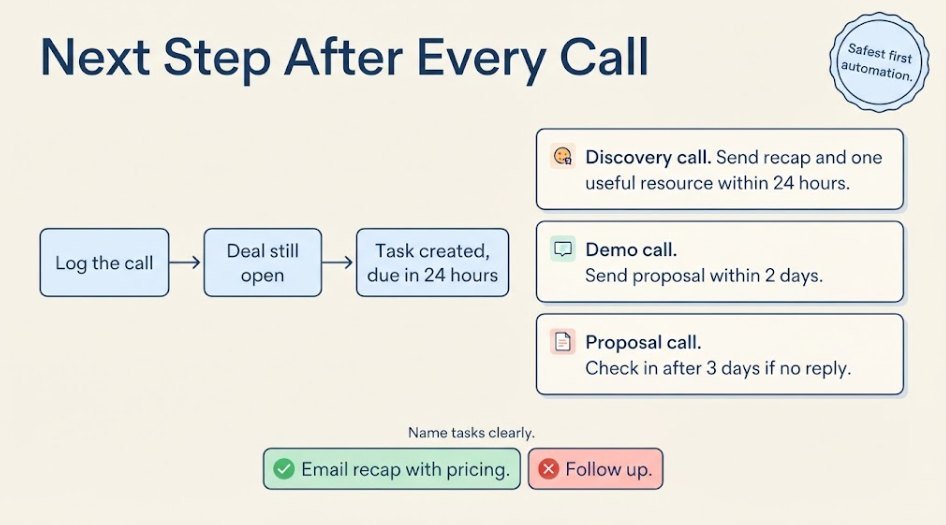
Here is one example. You log a sales call (trigger). The deal is open (condition). The CRM creates a follow-up task due in 24 hours (action). No memory needed.
Triggers come in three common types:
- Something happens: a form is filled in, a call is logged, a deal is won.
- A stage changes: a deal moves to “Proposal Sent.”
- Time passes: a deal has had no activity for 10 days.
Your CRM may call these “workflows,” “automations,” or “rules.” It is the same idea. The CRM automation examples below work in most CRMs. Menu names will differ, and none of them need coding.
Which CRM Automation Examples Should You Build (and Which Tasks Should Stay Manual)?
Use one rule: automate work that happens often and needs no judgment. Keep the human moments human. Capsule’s CRM automation guide gives the same advice, and it warns that too many automated alerts train people to ignore all of them.
Automate these
- Creating follow-up tasks
- Assigning new leads
- First “we got your message” emails
- Reminders for quiet deals
- Logging calls and emails
- Onboarding checklists
Keep these manual
- Pricing and negotiation
- Complaints and apologies
- Complex or sensitive questions
- The closing conversation
- Any process you cannot explain in three steps
That last item matters most. Automation makes a messy process faster, not better. If you are unsure whether your problem is the software or the process, read when you actually need business software before you build anything.

How to Pick the First of 8 CRM Automation Examples: A 3-Question Score
Not sure which of these CRM automation examples to build first? Score each idea with three questions. Give each answer a number from 1 to 3.
- How often does it happen? 1 = monthly, 2 = weekly, 3 = daily.
- What does a miss cost you? 1 = small, 2 = annoying, 3 = a lost deal.
- How easy is the rule? 1 = needs judgment or extra tools, 2 = some setup, 3 = a simple rule.
Add the three numbers. The highest total goes first. If two ideas tie, pick the one closest to revenue: lead response or follow-up. Here is an example for a small team with one to five people selling. Your scores will differ.
| Workflow | How often | Cost of a miss | Ease | Total |
|---|---|---|---|---|
| 1. Auto-assign new leads | 2 | 3 | 3 | 8 |
| 2. Follow-up tasks after calls | 3 | 3 | 3 | 9 |
| 3. Instant welcome email | 3 | 2 | 3 | 8 |
| 4. Move deals through stages | 2 | 2 | 2 | 6 |
| 5. Nudge on quiet deals | 2 | 3 | 3 | 8 |
| 6. Re-engage cold leads | 1 | 2 | 2 | 5 |
| 7. Auto-logging | 3 | 2 | 2 | 7 |
| 8. Onboarding tasks | 1 | 3 | 2 | 6 |
In this example, follow-up tasks win. They happen after every call, a missed one can cost a deal, and the rule is simple. Your best first pick from these CRM automation examples, by business size:
- Solo owner or freelancer: Workflow 2 (follow-up tasks). Then Workflow 5 (quiet deal nudge).
- Team of 2 to 5: Workflow 1 (lead assignment) and Workflow 2.
- Team of 6 to 25: Workflow 1, then Workflow 5, then Workflow 4 so managers can see the pipeline without chasing people.
Workflow 1: Auto-Assign New Leads to the Right Rep
A lead with no owner goes cold. Speed matters here. An older but widely cited study linked a 5-minute response to much higher odds of making contact and qualifying a lead, compared with waiting 30 minutes. This lead response time review explains the study and notes that it measured qualification, not completed sales. Read the big multipliers with care. The direction is still clear: faster is better.
A rule fixes this. New leads get an owner in seconds, and that person gets an alert. You can assign by turns (round-robin) or by rules such as region, product, or deal size.
- Trigger: a new lead arrives from a form, email, or chat.
- Condition: region, product interest, or whose turn it is.
- Action: set the owner and send them an email or app alert.
- Rough time saved: 15 to 30 minutes a week, plus faster first replies.
- Best for: teams of two or more. Solo owners can assign every lead to themselves and keep the alert.
- Watch out: a rep on holiday keeps getting leads. Add a backup owner.
Workflow 2: Create Follow-Up Tasks After Every Sales Call
Most deals do not die from a “no.” They die in the quiet after the call. One sales-statistics roundup claims most sales need five or more follow-ups, yet many reps stop after one. Treat the exact numbers as a rough guide. The lesson holds: follow-up is where deals are won.
Of all the CRM automation examples in this guide, this workflow matters most. When you log a call, the CRM creates the next task for you. You never rely on memory. Good task habits help too, and our guide on how to manage business tasks covers them.
- Trigger: a call or meeting is logged on a deal.
- Condition: the deal is still open.
- Action: create a task for the deal owner, due in 24 hours.
- Rough time saved: 10 to 20 minutes a week, plus fewer dropped follow-ups.
- Watch out: vague task names. “Email recap with pricing” works. “Follow up” does not.
Different calls need different next steps. Set one rule per call type:
- Discovery call: send a recap and one useful resource within 24 hours.
- Demo call: send the proposal within 2 days.
- Proposal call: check in after 3 days if there is no reply.
Start here if you are unsure: this is the safest first pick among these CRM automation examples for most small businesses. It is simple, it runs daily, and a missed follow-up costs real money.
Workflow 3: Send an Instant Welcome Email to New Leads
Someone fills in your form and hears nothing for hours. That feels like being ignored. An instant email fixes the gap. Its job is not to close the sale. Its job is to confirm you got the message and say what happens next.
Keep it short. Send it from a real name. Let people reply to it. Do not pretend it is personal. A line like “We reply within one business day” is honest and enough.
- Trigger: a new lead submits a form.
- Condition: the lead has a valid email address.
- Action: send a 3 to 4 line confirmation email and notify the owner.
- Rough time saved: 15 to 30 minutes a week.
- Pro and con: it is fast and consistent, but it can feel generic. Use it for the first touch only. Handle real conversations yourself.
Workflow 4: Move Deals Through Stages Automatically
Pipelines go stale when people forget to update them. Then forecasts mean nothing. With this rule, an event such as a sent proposal moves the deal and creates the next task. For example, HQ Digital describes a HubSpot rule that creates a “follow up in 3 days” task when a deal reaches “Proposal Sent.”
- Trigger: a proposal is sent or a meeting is booked.
- Condition: the deal is in the stage right before the one it will move to.
- Action: move the deal to the next stage and create the next task with a due date.
- Rough time saved: 10 to 15 minutes a week. The bigger win is a pipeline you can trust.
- Watch out: too many stages. Five or six is enough for most small teams.
Workflow 5: Get Nudged When a Deal Goes Quiet
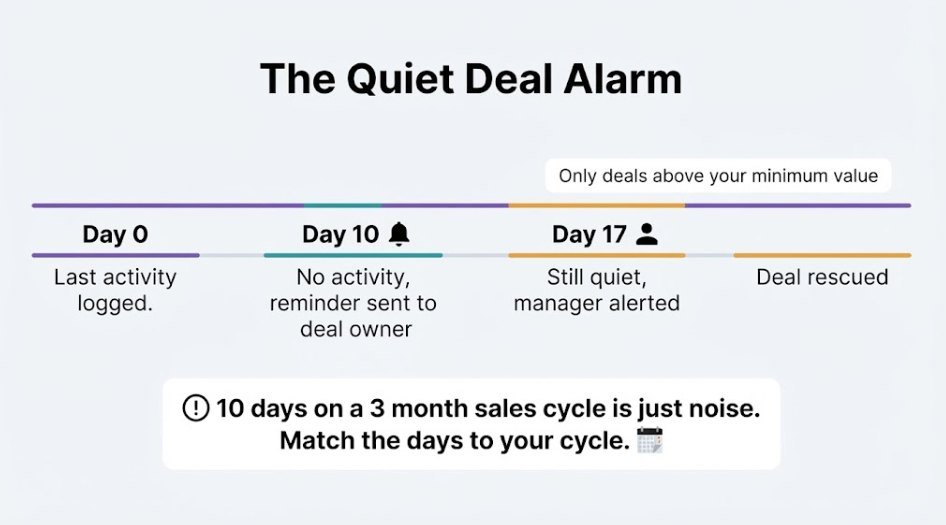
A quiet deal is easy to miss. Nothing is wrong, nothing is moving, and a month later it is lost. An idle-deal rule is cheap insurance. Capsule’s guide uses 10 days as an example. Pick a number that matches your sales cycle.
- Trigger: no logged activity on an open deal for 10 days.
- Condition: the deal is above your minimum value.
- Action: remind the owner. For larger teams, alert the manager if it stays quiet for another 7 days.
- Rough time saved: 10 to 20 minutes a week, plus rescued deals.
- Watch out: a 10-day alarm on a 3-month sales cycle is just noise. Match the days to your cycle.
Workflow 6: Re-Engage Cold Leads
Every CRM collects leads who said “maybe later” and then vanished. A simple rule can wake some of them up without hours of manual outreach. This one scores lower in the table because it runs less often. Build it after the first few.
- Trigger: a lead has had no reply or activity for 60 days.
- Condition: the lead has not opted out.
- Action: send one short check-in email. If they reply, create a task for you. If not, tag the lead “cold” and stop.
- Rough time saved: 30 to 60 minutes a month.
- Watch out: never loop. Send one or two emails, then stop. Always include an easy way to opt out.
Workflow 7: Keep CRM Data Clean With Auto-Logging
Reps skip the CRM when it feels like paperwork. Auto-logging removes the paperwork. You connect your email and calendar, and messages and meetings attach to the right contact on their own. Capsule suggests this as a day-one step because it removes the biggest data-entry chore.
- Trigger: an email is sent or received, or a meeting is booked.
- Condition: the email matches a contact in your CRM.
- Action: log it on that contact and deal.
- Rough time saved: 20 to 40 minutes a week for people who email a lot.
- Watch out: privacy. Check which emails sync, and keep personal messages out.
Workflow 8: Trigger Onboarding Tasks When a Deal Is Won
The moment a deal closes is when things get dropped. The invoice waits. The kickoff call is never booked. The customer wonders what happens next. A checklist that builds itself fixes this and gives every new customer the same good start.
- Trigger: a deal is marked “Won.”
- Condition: the type of product or service sold.
- Action: create a checklist: welcome email, invoice, kickoff call, account setup. Assign each item with a due date.
- Rough time saved: 15 to 30 minutes per new customer.
- Watch out: using one checklist for every service. Build a separate one for each offer.
5 CRM Automation Mistakes (and How to Test Before Going Live)
Bad automation can make a mess faster than a person can. These are the five mistakes new users make most with CRM automation examples, with the fix for each.
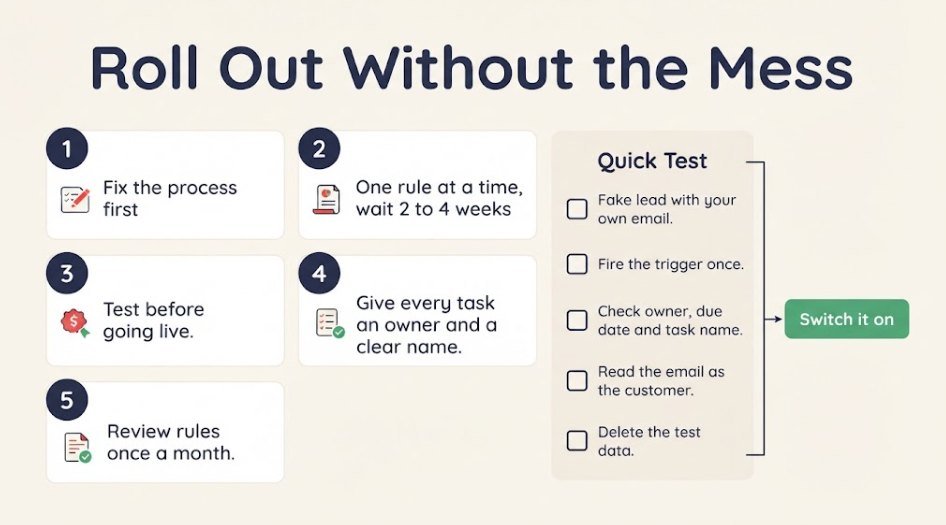
- Automating a broken process. Fix the steps first, then automate them.
- Building too much at once. Run one rule for two to four weeks before adding another.
- Skipping the test. One bad trigger can create dozens of duplicate tasks or send the wrong email.
- Tasks with no clear owner or name. Always assign a person and write a specific title.
- Never reviewing the rules. Your business changes. Check each rule once a month.
A 5-step test before you switch it on
- Create a fake lead or deal. Use your own email address.
- Fire the trigger once. Check that it runs one time, not twice.
- Check the details. Look at the owner, the due date, and the task name.
- Read any email as the customer. Check the sender name, the wording, and the reply address.
- Delete the test data. Then turn the rule on for real work.
How to Tell If Your CRM Automation Examples Are Working
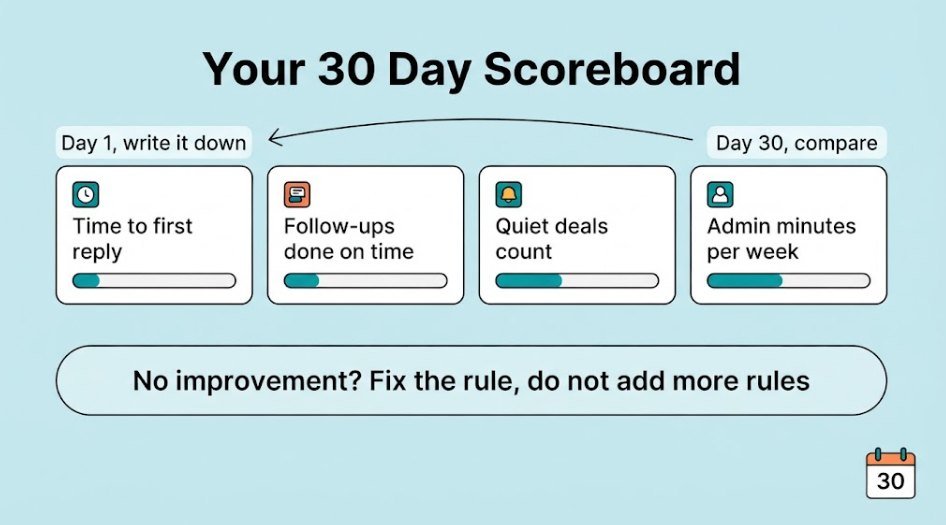
Measure before you build. Write down these four numbers on day one:
- Time to first reply: how long a new lead waits for a human answer.
- Follow-ups done on time: the share of follow-up tasks finished by their due date.
- Quiet deals: how many open deals have had no activity for 10 days or more.
- Admin time: how many minutes a week you spend on CRM updates. A simple weekly note is enough.
Check the same numbers after 30 days. If they have not improved, fix the rule. Do not add more rules on top of one that is not working.
30-day rule: if an automation has not saved time or caught a dropped follow-up within a month, change it or turn it off.
Your First-Week Automation Plan
You can build the first of these CRM automation examples in a week, in short sessions. Here is a simple plan:
- Day 1: Choose. List your repeat tasks. Score the top three with the 3-question score. Pick the winner.
- Day 2: Write the rule on paper. Trigger, condition, action. Check that your CRM has the fields you need.
- Day 3: Build it. Keep it simple. One trigger, one action, one owner.
- Day 4: Test it. Run the 5-step test and fix what breaks.
- Day 5: Go live and record your baseline. Write down the four numbers from the last section.
Then wait two to four weeks. Review the numbers. Only then build your second workflow.
CRM Automation FAQs
Which of the CRM automation examples is best to build first for a small business?
For most small businesses, it is the follow-up task after a sales call. It happens often, a miss costs money, and the rule is simple. If you have several people selling, add lead assignment next.
Do I need a paid CRM to use automation?
Not always. Some CRMs include basic automation on free or starter plans. Limits differ a lot, so check the plan page for the number of rules and the triggers you get before you pay for anything.
Will automation make my business sound robotic?
Only if you automate the wrong things. Use automation for first replies, reminders, and tasks. Handle pricing, problems, and closing yourself. Short emails written in your own voice rarely feel robotic.
How many automations are too many?
There is no magic number. A good test is whether your team reads and acts on every alert. If people start ignoring them, you have too many. Start with one, and add another only after the first one proves its value.
Should I use AI instead of simple rules?
Start with simple rules. They are predictable and easy to check. AI features, such as call summaries or draft replies, work best once your basic rules are solid. Capsule’s guide makes the same point.
How long does it take to set up one workflow?
A simple rule often takes under an hour to build. That is an estimate, and it varies by CRM. Plan extra time for testing. The test matters as much as the build.
How do I choose a CRM that supports automation?
Check that it offers the triggers and actions in this guide: task creation, lead assignment, stage changes, and email logging. Our guide on how to choose business software shows how to compare options without wasting money.
Final Thoughts
The best CRM automation examples are not the cleverest ones. The best first pick is the one that fixes your most expensive problem. Score your options, pick one, test it, and measure it for 30 days.
If you are on your own, start with follow-up tasks. If you have a small team, add lead assignment. If you manage up to 25 people, add the quiet-deal nudge and automatic stages for clear visibility. Want more guides like this? Browse the Business Software Hub.
