
Want to manage business tasks without missed deadlines, scattered sticky notes, and endless email threads? This guide shows you how to manage business tasks with digital tools, from simple prioritization rules to automated workflows you can copy and use right away. Keep reading to see how a simple system brings less manual effort and more visible progress.
Who this is for
Small business owners, team leads, freelancers, and managers who want fewer dropped tasks and less manual work.
What you will get
Clear definitions, prioritization methods, tool comparisons, ready-made workflow examples, and a step-by-step setup plan.
Most teams do not fall behind because people are lazy. They struggle to manage business tasks because work is invisible: requests live in chat apps, deadlines hide in inboxes, and nobody is sure who owns what. Digital task management fixes this by putting every task, owner, and due date in one place, which is the foundation of any effort to manage business tasks well. If you are still exploring the bigger picture, our guide on what business software is is a good starting point, and Atlassian’s Kanban guide explains one of the most popular visual systems in detail.
What Are Business Tasks and Digital Workflows? (Tasks vs. Workflows vs. Projects)
A business task is a single action that one person can finish, such as “send the invoice to the client.” A workflow is a repeatable series of tasks that moves work from start to finish, such as the full invoicing process from quote to payment. A project is a one-time effort with a goal and an end date, such as launching a new website. These terms overlap, which is why teams often mix them up and end up with the wrong tool or structure. Knowing which one you are dealing with is the first step toward a system that helps you manage business tasks without confusion.
A digital workflow simply means that the steps, handoffs, and reminders happen in software instead of in memory, paper, or scattered messages. Some steps can even run automatically, which is where tools like Zapier come in. The table below shows how the three concepts differ.
| Concept | Definition | Example | Repeats? |
|---|---|---|---|
| Task | One action with one owner | Reply to a customer inquiry | Sometimes |
| Workflow | A repeatable chain of tasks and handoffs | New client onboarding process | Yes |
| Project | A one-time goal with a deadline | Rebrand the company website | No |
Why Manage Tasks and Workflows Digitally: Key Benefits
Moving from memory and paper to software changes how a team operates day to day. When you manage business tasks digitally, the gains are practical, and most appear within the first few weeks of consistent use.
- Clear ownership: every task has one named person and a due date, so nothing falls into a gap.
- Less time on status updates: anyone can check progress without asking for a meeting or a message.
- Fewer repeated mistakes: templates and checklists keep recurring processes consistent.
- Automation of boring work: reminders, handoffs, and data entry can run without human effort.
- Better records: a searchable history helps you review decisions, onboard new staff, and spot bottlenecks.
For a wider look at how software supports daily operations, see our article on how to organize business operations with software.
How to Prioritize Business Tasks: The 3-3-3 Rule and the 1/3/5 Rule
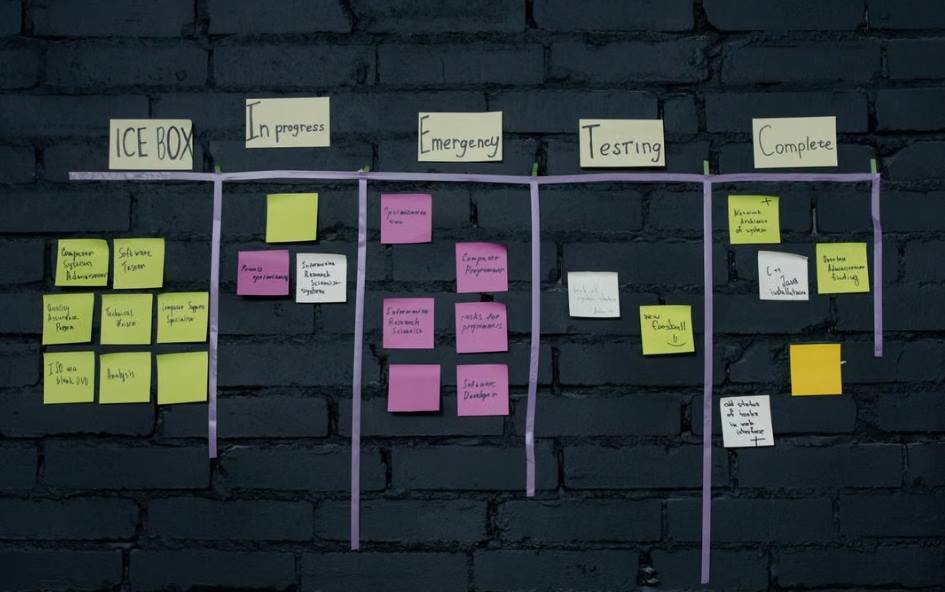
A tool cannot fix a list of 60 “urgent” tasks. To manage business tasks well, prioritization comes first, and two simple rules work because they cap your daily workload at a realistic size.
The 3-3-3 rule structures your day into three blocks: three hours on your most important project, three shorter tasks that need to get done, and three maintenance tasks such as email or admin. The 1/3/5 rule limits your daily list to one big task, three medium tasks, and five small tasks, nine items in total. Both rules force a choice, which is the whole point: they keep your daily workload realistic instead of letting an endless list pile up. If you want a method for deciding what counts as “big,” the Eisenhower Matrix sorts tasks by urgency and importance.
| Rule | How it works | Best for |
|---|---|---|
| 3-3-3 Rule | 3 hours of deep work, 3 short tasks, 3 maintenance tasks | Owners and managers who need protected focus time |
| 1/3/5 Rule | 1 big, 3 medium, 5 small tasks per day | People with mixed workloads and frequent interruptions |
Tip: Add a “Today” label or column in your task tool and limit it to the numbers in your chosen rule. If a tenth task appears, something else has to move to tomorrow.
Task Management Methods That Work: Kanban, To-Do Lists, and Time Blocking
Once you know what matters, you need a method to organize it. Three approaches cover most small business needs, and many people combine them.
| Method | How it works | Strength | Limitation |
|---|---|---|---|
| To-do list | A simple list of tasks you check off | Fast to start, easy to understand | Does not show workload or stages |
| Kanban board | Cards move across columns such as To Do, Doing, and Done | Visual progress and shared visibility | Can get cluttered without work-in-progress limits |
| Time blocking | You assign tasks to specific blocks on your calendar | Protects focus time and shows what fits | Needs regular adjustment when plans change |
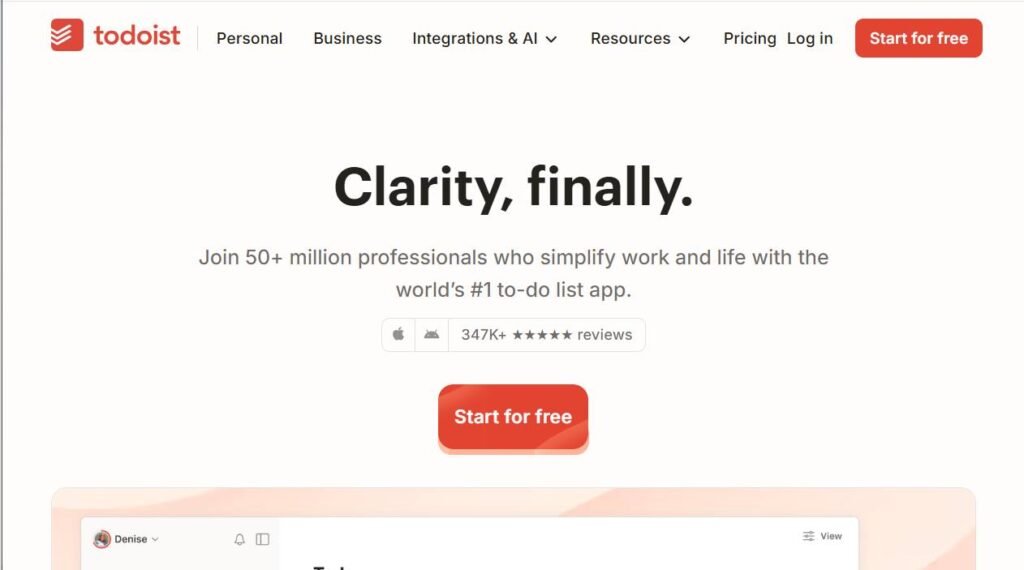
A practical combination for a small team is a Kanban board for shared work, a personal to-do list for daily items, and time blocking to protect two or three focus sessions each week. The Todoist site has helpful material on personal productivity methods if you want to go deeper.
Types of Digital Tools Every Business Needs
You do not need dozens of apps. Most small businesses are well served by a handful of tool categories, each solving a different problem. Choosing the right categories makes it far easier to manage business tasks across a growing team. For a deeper look at all-in-one options, read our overview of business management software.
| Tool type | What it does | Example |
|---|---|---|
| Task and project management | Tracks tasks, owners, and deadlines | Trello, Asana |
| Communication | Handles team chat and quick questions | Slack, Microsoft Teams |
| Document and file storage | Keeps shared files in one searchable place | Google Drive, Dropbox |
| Calendar and scheduling | Manages meetings and time blocks | Google Calendar, Calendly |
| Automation | Connects apps and runs repeated steps | Zapier, Make |
| Customer relationship management | Stores contacts and tracks sales follow-ups | HubSpot, Zoho CRM |
Best Task Management Tools for Small Business: Trello, Google Tasks, and More
The best tool to manage business tasks is the one your team will actually open every day. Below are well-known options and the type of business each one suits. Features and plans change over time, so always check each vendor’s current offering before you commit.
| Tool | Best for | Why it fits | Watch out for |
|---|---|---|---|
| Trello | Visual Kanban boards | Simple drag-and-drop cards, easy for beginners | Complex projects may need extra add-ons |
| Google Tasks | Solo owners and light personal lists | Lives inside Gmail and Google Calendar | Limited collaboration and reporting |
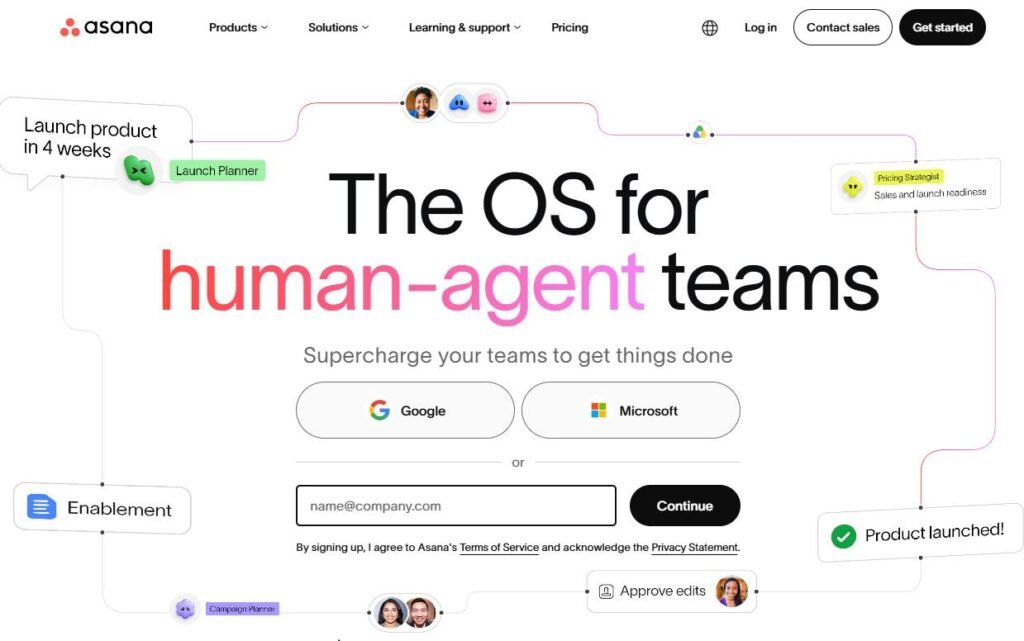
| Asana | Teams with multiple projects | Multiple views, dependencies, and templates | Can feel heavy for very small teams |
| Todoist | Personal and small-team to-do lists | Fast capture, recurring tasks, clean design | Fewer project-management features |
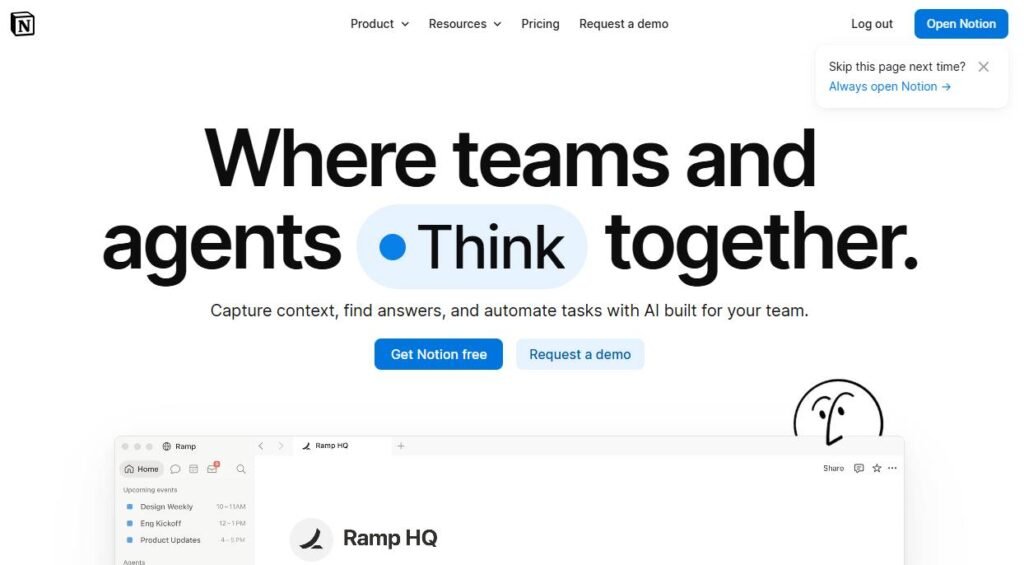
| Notion | Teams who want notes and tasks together | Flexible databases, wikis, and boards | Takes time to set up well |
| ClickUp | Teams who want many features in one app | Tasks, docs, goals, and time tracking | Large feature set can overwhelm new users |
| Microsoft Planner | Businesses already using Microsoft 365 | Integrates with Teams and Outlook | Less flexible than dedicated tools |
If you are a solo owner, start with Google Tasks or Todoist. If you manage a small team, Trello or Asana is usually the quickest way to get everyone on the same page and to manage business tasks with shared visibility.
Workflow Automation Tools: Examples and What They Do
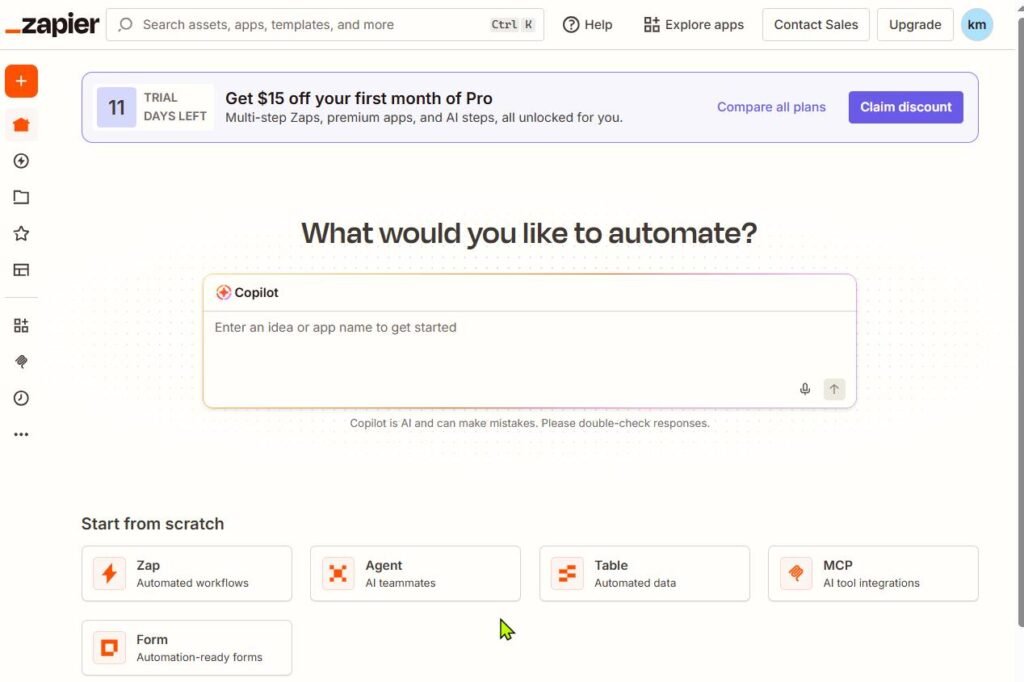
Automation tools help you manage business tasks with less effort by connecting your apps so that an event in one triggers an action in another. For example, a new form submission can create a task, send a notification, and add a row to a spreadsheet without anyone touching it. Most work on a simple “trigger and action” model, and many offer free tiers that are enough to test an idea.
| Tool | What it does | Example automation |
|---|---|---|
| Zapier | Connects thousands of apps with simple triggers and actions | New email attachment is saved to Google Drive and a task is created |
| Make | Builds visual, multi-step automations | Order received, invoice created, customer notified |
| IFTTT | Runs simple “if this, then that” rules | Calendar event added, reminder sent to your phone |
| Power Automate | Automates tasks across Microsoft apps | Approval request sent when a file is uploaded |
Many task tools also have built-in automation, such as moving a card when a checklist is complete, so check what your current tool offers before adding another app.
Simple Digital Workflow Examples You Can Copy Today
You do not have to design workflows from scratch. These examples show how to manage business tasks in common situations and can be built in almost any task tool. Copy the steps, then adjust names and owners to fit your team.
| Workflow | Steps | Suggested tools |
|---|---|---|
| Client onboarding | Signed contract, welcome email, kickoff task list, first meeting booked | Trello or Asana, plus Zapier |
| Invoice and payment follow-up | Job complete, invoice sent, reminder at due date, follow-up task if unpaid | Accounting software and a task tool |
| Content approval | Draft, review, edit, final approval, publish | Trello board with columns for each stage |
| Lead follow-up | Form submitted, contact added, follow-up task created within one day | CRM or spreadsheet plus automation |
| Expense approval | Receipt submitted, manager reviews, finance records it | Shared form and approval workflow |
| Employee onboarding | Offer accepted, accounts created, training checklist assigned, week-one check-in | Checklist template in your task tool |
| Weekly team review | Collect updates, review the board, set next week’s top priorities | Kanban board and a shared calendar |
| Customer support requests | Request received, ticket assigned, answered, closed and reviewed | Shared inbox or help desk tool |
Start small: Pick the one workflow that causes the most repeated frustration, build it first, and run it for two weeks before adding another.
How to Set Up a Digital Workflow Step by Step
Whether you are building client onboarding or a content pipeline, the setup process is the same. Following these steps keeps the workflow simple enough that people will use it, and it helps you manage business tasks consistently as the team grows. For more background, see how to organize business operations with software.
- Write down the current process. List every step as it actually happens today, including the messy parts.
- Remove what is unnecessary. Cut duplicate steps and approvals that add delay without adding value.
- Assign an owner to each step. One person per step avoids the “I thought you had it” problem.
- Build it in your tool. Create columns, checklists, or a template that mirrors the steps in order.
- Automate the repetitive parts. Add reminders, notifications, or app connections where steps are predictable.
- Test, train, and improve. Run it with a real task, collect feedback, and fix friction before rolling it out to everyone.
The most important step is the first one. Many teams automate a process nobody has fully mapped, which only makes a confusing process run faster.
How to Choose the Right Tool: Features That Matter
Feature lists can be long and distracting. Focus on the criteria below, and use our full guide on how to choose business software for a deeper evaluation process.
| Feature | Why it matters |
|---|---|
| Ease of use | If it takes hours to learn, your team will go back to old habits |
| Task assignment and due dates | Clear ownership is the core of any task system |
| Multiple views | List, board, and calendar views suit different working styles |
| Templates and recurring tasks | Saves setup time for repeated workflows |
| Integrations | Connects with the email, calendar, and files you already use |
| Mobile app | Lets people update tasks while away from their desks |
| Permissions and security | Controls who can see and edit sensitive information |
| Scalability | Lets you add users and projects without switching tools later |
Free vs. Paid Tools: What Does It Really Cost?
Free plans are an excellent way to test a tool, and many small teams run on them for a long time. The real cost of a tool, however, includes setup time, training, and the price of switching later, not just the monthly fee. Compare plans on the vendor’s own pricing page, such as Trello’s pricing page, since limits change over time.
What free plans usually give you
- Core task and board features
- A limited number of users or projects
- Basic integrations and mobile access
What you usually give up
- Advanced automation and reporting
- Detailed permissions and admin controls
- Priority support and larger storage
A sensible rule is to stay on the free plan until you hit a limit that costs you real time, then upgrade only the people who need the extra features. This keeps the cost of the tools you use to manage business tasks proportional to the value they actually deliver.
Common Mistakes to Avoid, Including Using Too Many Tools
Most problems with task management come from habits, not software. Here are the mistakes that appear most often and how to avoid them when you manage business tasks across a team.
Mistakes to avoid
- Using too many tools: tasks spread across five apps are harder to track than tasks kept in one place.
- Automating a broken process: fix the steps before you speed them up.
- Skipping training: a tool nobody understands will not be used.
- Overcomplicating boards: too many columns, labels, and fields create friction.
- No clear owner: tasks assigned to “the team” rarely get finished.
Better habits
- One home for tasks: pick a single system and make it the source of truth.
- Map first, automate second: document the process before building it.
- Short onboarding: a 30-minute walkthrough prevents weeks of confusion.
- Keep it simple: start with three columns and add only when needed.
- Name one owner: every task gets one person and one due date.
How to Track Results and Improve Your Workflows
A workflow is never finished. Reviewing a few simple numbers shows whether your system is helping or just adding admin work, and whether you still manage business tasks better than you did before the tool existed. Many task tools include basic reports, and you can also track these in a spreadsheet.
| Metric | What it tells you | What to do if it looks bad |
|---|---|---|
| Tasks completed on time | Whether deadlines are realistic | Reduce workload or extend estimates |
| Average time to finish a workflow | Where delays build up | Find the slowest step and simplify it |
| Overdue tasks | Whether work is blocked or forgotten | Review owners and add reminders |
| Hours saved by automation | Whether automation is worth maintaining | Retire automations nobody relies on |
| Team feedback | Whether the system feels helpful | Ask what is confusing and adjust |
Monthly check: Once a month, spend 20 minutes reviewing your board. Archive old tasks, remove unused automations, and ask your team one question: what slows you down the most?
Frequently Asked Questions
How do you manage business tasks effectively?
Start by collecting all tasks in one place, then assign an owner and due date to each. Prioritize using a simple rule such as the 1/3/5 rule, and review progress weekly. Use a digital tool such as a Kanban board so everyone can see what is happening and you can manage business tasks without chasing status updates.
What is the 3-3-3 rule for productivity?
The 3-3-3 rule splits your day into three hours of focused work on your most important project, three shorter tasks, and three maintenance activities such as email or admin. It limits your list so you finish what matters most.
What is the 1/3/5 rule?
The 1/3/5 rule caps your daily to-do list at nine items: one big task, three medium tasks, and five small tasks. It keeps your list realistic and helps you decide what to do first.
What is the difference between a task, a workflow, and a project?
A task is a single action, a workflow is a repeatable series of tasks, and a project is a one-time effort with a defined goal and end date. Projects often contain tasks, and workflows are often used inside projects.
What is the best free task management tool for small business?
There is no single best option. Trello suits visual Kanban boards, Google Tasks works well for simple personal lists, and Asana or ClickUp can suit teams that need more structure. Test two options on a real project before choosing. See our guide on how to choose business software for help.
What is workflow automation and do small businesses need it?
Workflow automation uses software to run repeated steps without manual effort, such as creating a task when a form is submitted. Small businesses benefit most when they automate high-volume, predictable steps like reminders and data entry, but it is not required on day one.
How many tools does a small business really need?
Most small businesses do well with one task tool, one communication tool, one file storage tool, and a calendar. Add automation or a CRM only when a clear need appears. Fewer tools usually means fewer missed tasks.
Final Thoughts
Learning to manage business tasks well is less about finding the perfect app and more about building a simple, visible system your team will follow. Prioritize with a clear rule, choose one tool that fits your size, map your workflow before you automate it, and review your results regularly. Start with one workflow this week, and expand from there. For more help, explore our guides on business management software and organizing business operations with software.
