


Learn how to organize business operations with software in seven proven steps. Messy spreadsheets, scattered chats, and tasks that fall through the cracks quietly drain time and money, so this guide also includes a 30-60-90 day rollout plan you can start using right away.
Who this is for
Owners, managers, and team leads who want a clear, repeatable way to run daily work without relying on memory, sticky notes, or endless email threads.
What you will get
A step-by-step process, practical tables and checklists, a phased rollout plan, and a list of mistakes to avoid so your software investment actually pays off.
Every business runs on operations management, whether the owner has a formal system or not. The difference between a smooth business and a chaotic one is usually not talent or effort. It is whether the work is organized, visible, and repeatable. Software is the tool that makes that possible, and if you are still exploring your options, our guide to what business software is is a good place to start.
What Are Business Operations? (The 4 Types and 5 Core Processes)
Business operations are all the day-to-day activities a company performs to create value, serve customers, and keep the organization running. That includes everything from taking an order and delivering a product to paying invoices and onboarding a new hire. A useful way to think about it is that operations is the “how” behind every promise your business makes. Related ideas such as business processes describe the repeatable sets of steps that turn inputs into outcomes.
The 4 types of business operations
Different industries slice operations in different ways. For small and mid-sized businesses, this four-part view is the most practical because it maps neatly onto the software you will need.
| Type | What it covers | Typical software category |
|---|---|---|
| Production operations | Making or assembling a physical product, from raw materials to finished goods | Inventory, manufacturing, and supply chain tools |
| Service delivery operations | Delivering expertise or labor to clients, such as consulting, repairs, or design | Project management, scheduling, and time tracking |
| Support operations | Internal functions that keep the business running, such as finance, HR, IT, and admin | Accounting, payroll, HR, and helpdesk platforms |
| Management operations | Planning, goal setting, reporting, and decision making across the company | Dashboards, reporting, and goal-tracking tools |
The 5 core operational processes
No matter which type of operations you run, almost every company depends on the same five core processes. If one of them breaks down, the rest of the business feels it quickly.
- Planning: Forecasting demand, setting priorities, and scheduling people and resources.
- Procurement: Sourcing the materials, tools, and vendors you need at the right price and time.
- Delivery: Producing the product or performing the service your customer paid for.
- Quality control: Checking that the output meets your standards before and after it reaches the customer.
- Customer support and feedback: Answering questions, fixing problems, and feeding what you learn back into planning.
Most operational problems trace back to one of these five processes being undefined, undocumented, or invisible to the people who depend on it. That is exactly what the steps below are designed to fix.
Why Organizing Operations With Software Matters
Running operations from memory, inboxes, and disconnected spreadsheets works when you have two or three people. It stops working the moment the team grows, customers multiply, or someone is out sick. Software replaces guesswork with a single, shared system everyone can see and trust. Many modern tools are built around workflows that move work from one person to the next automatically.
The benefits tend to show up in the same places across almost every business:
- Less wasted time: Fewer status meetings, fewer “where is that file?” messages, and less retyping of the same data.
- Fewer errors: Standard forms, checklists, and automations reduce the mistakes that come from manual handoffs.
- Better visibility: Owners and managers can see who is doing what, what is late, and what is coming next.
- Easier growth: New hires follow documented processes instead of learning everything by trial and error.
Key idea: Software does not fix a broken process. It speeds up whatever process you already have. That is why the first steps below focus on understanding and simplifying your work before you buy or configure anything.

Step 1: Map Your Current Processes and Find Bottlenecks
Before choosing any tool, write down how work actually flows today, not how you wish it flowed. Pick your five to ten most important processes, such as taking orders, onboarding clients, handling invoices, or fulfilling requests. For each one, list the steps, who does them, which tools they use, and how long each step takes. This technique is a simple form of business process mapping, and a whiteboard or sticky notes are enough to do it.

As you map, look for bottlenecks: the points where work piles up, waits for approval, or gets sent back. The theory of constraints explains why this matters. Your whole system can only move as fast as its slowest step, so improving anything else is wasted effort until that step is fixed.
| Warning sign | What it usually means |
|---|---|
| The same data is typed in more than one place | Disconnected tools and a missing source of truth |
| Work waits on one person’s approval | A single point of failure that needs delegation or automation |
| Team members ask “who owns this?” often | Unclear roles and responsibilities |
| Deadlines are missed without anyone noticing | No shared visibility into status and due dates |
| Customers repeat information to different people | Poor handoffs between teams |
Quick tip: Ask the people who do the work, not just the managers. Frontline team members almost always know exactly where the friction is.
Step 2: Set Clear Operational Goals
Once you know where the problems are, decide what “better” looks like. Vague goals such as “be more organized” cannot be measured, so they cannot be improved. Use SMART criteria to turn each problem into a specific, measurable target with a deadline and an owner.
Pair every goal with a key performance indicator (KPI) so you can track progress. Good operational KPIs are simple and tied to real outcomes:
- Turnaround time: How long it takes to complete an order, request, or project.
- Error or rework rate: How often work has to be corrected or redone.
- On-time delivery rate: The share of tasks or orders finished by their deadline.
- Cost per transaction: What it costs your team to complete one unit of work.
- Customer satisfaction: Ratings, reviews, or repeat-purchase rates.
Limit yourself to three to five goals at first. A short list gets done, while a long one gets ignored. Record your starting numbers now so you can prove the improvement later.
Step 3: Choose the Right Business Operations Software
With your processes mapped and your goals set, you can now judge tools against real needs instead of flashy feature lists. Start with the problem you ranked highest, then look for software built to solve it. Our in-depth guide on how to choose business software covers the full evaluation process, and our overview of business management software shows how all-in-one platforms compare with specialized tools.
As a quick filter, shortlist only tools that fit your team size and budget, connect with the apps you already use, and are simple enough that people will actually adopt them. A free trial with a real task is worth more than any demo.
Step 4: Centralize Tasks, Files, and Team Communication
The biggest operational drag in most small businesses is scatter. Tasks live in someone’s notebook, files sit in personal drives, and decisions get buried in chat threads. Centralizing means giving every type of information one clear home, so nobody has to hunt for it. Platforms such as Asana, Trello, and Notion are popular choices for keeping work in one place.
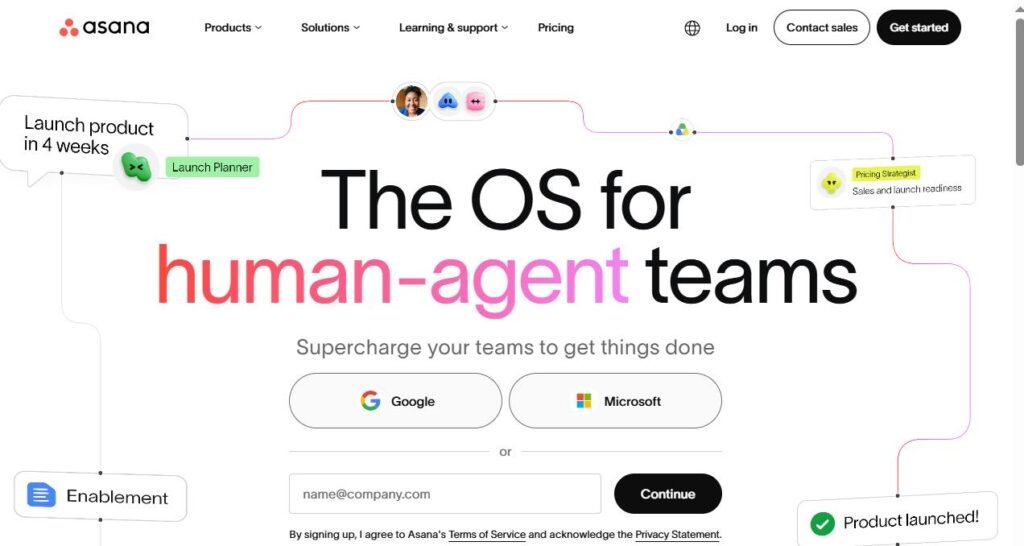
Think of your operations hub as three connected layers, each with a single job:
| Layer | What lives here | Example tools |
|---|---|---|
| Tasks and projects | Assignments, owners, due dates, priorities, and status | Asana, Trello |
| Files and knowledge | Documents, templates, policies, and shared folders | Google Workspace, Microsoft 365 |
| Communication | Daily chat, quick questions, announcements, and meetings | Slack, Zoom |
The secret is setting simple rules and sticking to them. For example, decisions are recorded in the task, not in chat. Files are saved in the shared folder, never in email attachments. Questions about a project go in that project’s channel. These small habits prevent the slow return of clutter.
Rule of thumb: If a piece of information has to be asked for more than twice, it belongs in a shared, searchable place.
Step 5: Automate Repetitive Workflows
Once your work is centralized, look for tasks that are repeated the same way again and again. These are perfect candidates for automation, because a machine never forgets a step. Tools like Zapier and Make connect your apps so that one action triggers the next, and many project and CRM platforms include built-in automation rules as well.
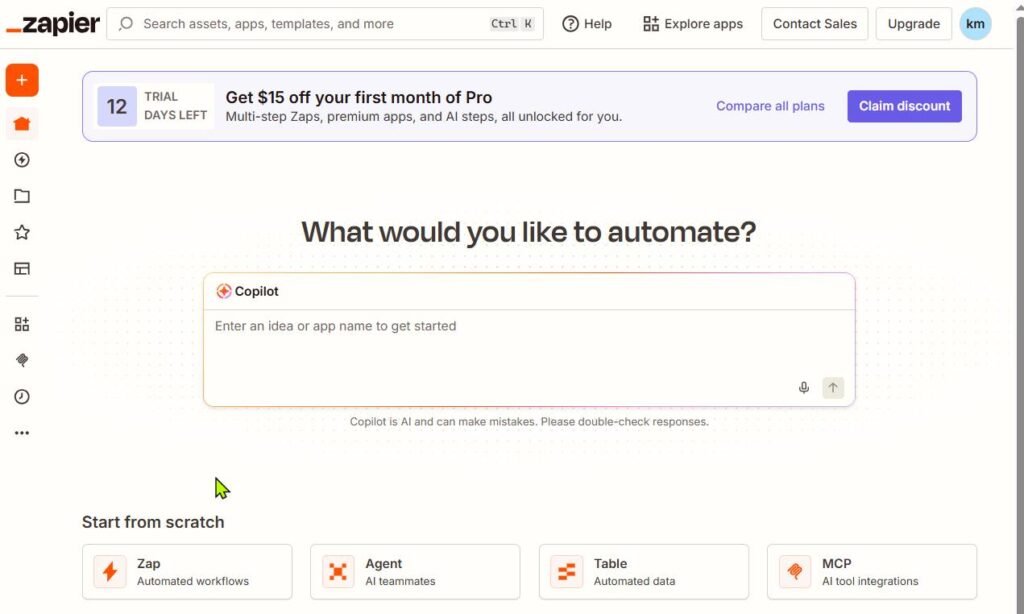
Good first automations are simple and low risk:
- Creating a task automatically when a new order or form submission arrives.
- Sending a reminder when a due date is approaching or a task is overdue.
- Routing approvals to the right person without manual forwarding.
- Syncing customer details between your CRM, email, and accounting tools.
- Posting a weekly summary of completed work to the team channel.
Automate a process only after it works well manually. Automating a confusing process simply produces confusion faster. Start with one workflow, test it for a week, and then expand.
Step 6: Document SOPs and Templates
A standard operating procedure (SOP) is a written, step-by-step guide to completing a recurring task the right way. SOPs protect you when someone is absent, speed up training, and keep quality consistent from one person to the next. They also make automation easier, because a documented process is a process you understand.
Good SOPs are short, visual, and easy to find. A strong one usually includes:
- Purpose: One sentence on why the process exists and what a good result looks like.
- Owner: The person responsible for keeping the SOP accurate.
- Steps: Numbered actions, with screenshots or short videos where they help.
- Tools and links: The exact apps, folders, and templates required.
- Checklist: A final quality check before the task is marked done.
Alongside SOPs, build reusable templates for the things you create repeatedly, such as project plans, client onboarding checklists, proposals, and meeting agendas. Store them in your central knowledge space so anyone can copy and start in seconds.
Start small: Document your top five most repeated tasks first. Let team members record a quick screen video, then clean it up into written steps later.

Step 7: Train Your Team, Pilot, Then Roll Out
Even the best software fails if people do not use it. Treat adoption as a project in its own right. Explain the “why” before the “how”, so your team understands which problems the new system solves for them, not just for management. Then follow a simple three-stage approach:
- Train: Run short, hands-on sessions built around real tasks rather than long feature tours.
- Pilot: Test the setup with one small team or one process for a few weeks, and collect honest feedback.
- Roll out: Fix what the pilot revealed, then expand to the rest of the business in stages.
Name one or two internal champions who are comfortable with the tool and can answer quick questions. Their help is often worth more than any help-center article. Also decide a clear date when the old way, such as the shared spreadsheet or email approvals, officially stops, otherwise people will keep using both systems.
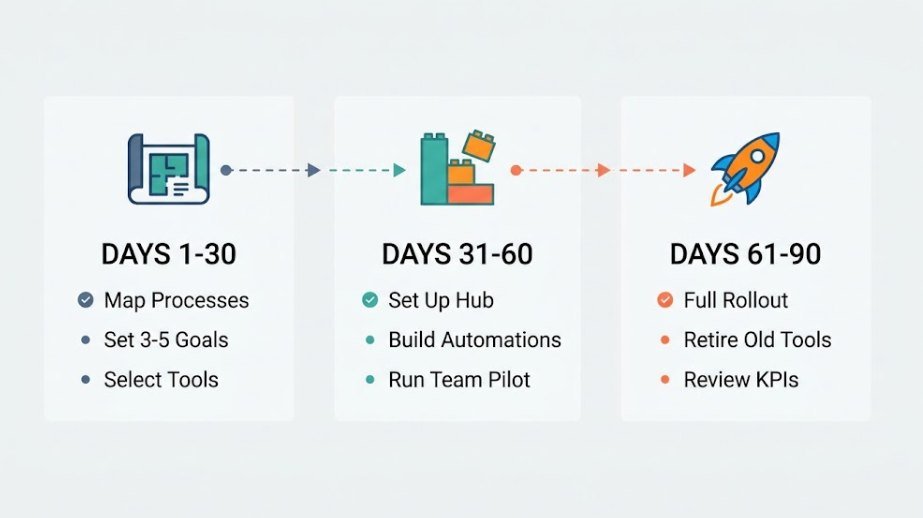
Your 30-60-90 Day Rollout Plan
A phased plan keeps the change manageable and gives you natural checkpoints. Use this schedule as a starting point and adjust it to your team size. The final phase also covers the step many businesses skip: measuring, reviewing, and improving. This is the core of the plan-do-check-act cycle, which turns a one-time setup into continuous improvement.
| Phase | Focus | Key actions | Success check |
|---|---|---|---|
| Days 1-30 | Foundation | Map processes, find bottlenecks, set three to five goals, record baseline KPIs, shortlist and trial tools, pick one pilot process | Goals and baseline numbers are written down and the tool is chosen |
| Days 31-60 | Build and pilot | Set up the central workspace, import tasks and files, build the first two or three automations, write SOPs and templates for top tasks, train and run the pilot team | Pilot team works fully inside the new system with positive feedback |
| Days 61-90 | Roll out and improve | Fix issues from the pilot, onboard remaining teams, retire old methods, review KPIs against baseline, plan the next round of improvements | At least one goal shows measurable improvement and everyone uses one system |
Measure, review, improve
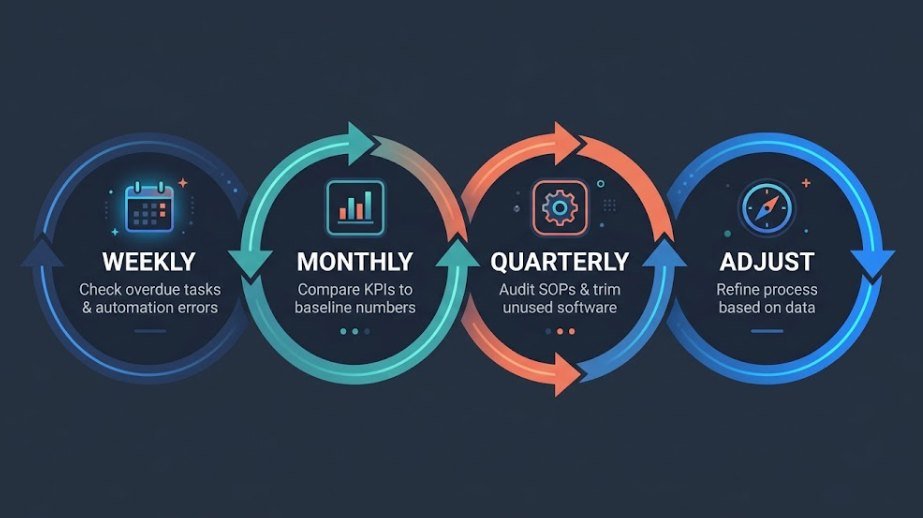
Rolling out the software is the starting line, not the finish. Build a simple review rhythm so your system keeps getting better instead of slowly drifting back to old habits.
- Weekly: A short check on overdue tasks, blocked work, and automation errors.
- Monthly: Compare your KPIs to the baseline you recorded in the first 30 days, and ask the team what is still slowing them down.
- Quarterly: Review SOPs for accuracy, remove unused tools and automations, and set the next set of goals.
Keep it honest: If a KPI has not improved after a full cycle, change the process or the setup, not just the target. Numbers are there to teach you something, not to look good on a slide.
Common Mistakes to Avoid
Most failed software rollouts share the same handful of causes. Watch for these early and you will save yourself months of frustration.
What works
- Fix the process first: Simplify the workflow, then add software.
- Start small: Pilot one process before changing everything.
- Involve the team: Ask the people who do the work to help choose and design the setup.
- Review regularly: Check KPIs and trim unused tools on a schedule.
What backfires
- Buying before mapping: Choosing a tool before you understand the problem.
- Tool overload: Adding a new app for every small need until nothing connects.
- Skipping training: Assuming people will figure it out on their own.
- Running two systems: Keeping the old spreadsheet alive “just in case”.
- Over-automating: Automating broken or unclear processes.
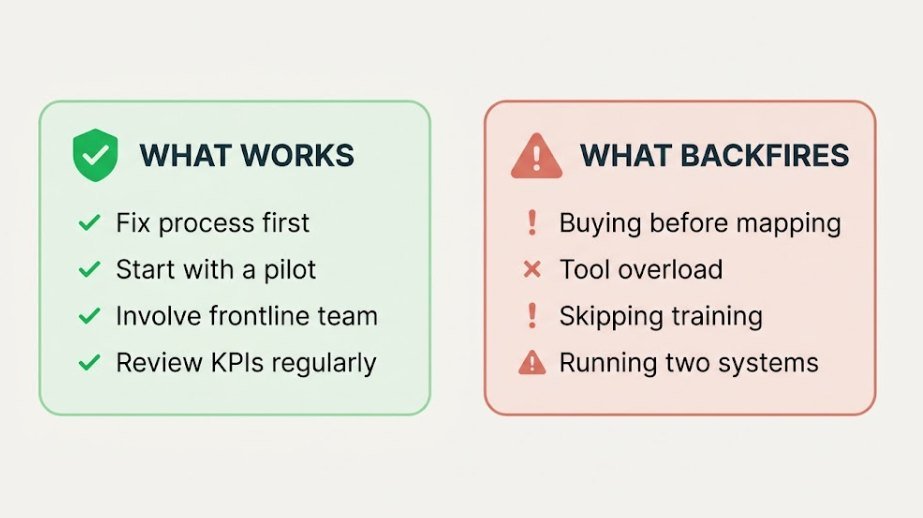
The thread running through all of these is the same: software supports good habits, but it cannot replace them. Keep the focus on clear processes, clear ownership, and clear goals, and the tools will do their job.
Frequently Asked Questions
What is the most used business software?
Office and collaboration suites such as Microsoft 365 and Google Workspace are the most widely used business software worldwide, since nearly every company relies on email, documents, spreadsheets, and video meetings. Beyond that, the most common categories are accounting, customer relationship management (CRM), project management, and team chat. The right choice depends on your size and industry, and our guide to what business software is explains the main categories in more detail.
What apps do CEOs use?
There is no single “CEO stack”, but most executives rely on a similar set of tools: email and calendar for scheduling, a chat app such as Slack or Microsoft Teams for quick communication, video conferencing for meetings, a spreadsheet or dashboard tool for numbers, a CRM for customer and sales visibility, and a notes or task app for priorities. The common thread is that they favor tools that give a fast, clear view of the business rather than tools with the most features.
What are the 5 P’s of operations management?
The 5 P’s are a common framework for the key resources and activities managed in operations management. They are usually described as People (the workforce), Plant (facilities and equipment), Parts (materials and supplies), Processes (the methods used to create output), and Planning and control systems (the procedures that coordinate everything else). Some sources word the list slightly differently, but the idea is the same: balance all five and operations run smoothly.
How do I organize business operations with software if I have a very small team?
Keep it simple. Choose one tool for tasks, one place for files, and one channel for communication. Map your three most important processes, write short SOPs for them, and automate only the most repetitive step. Small teams benefit most from low-cost or free plans and from avoiding tool overload.
Should I choose an all-in-one platform or separate specialized tools?
All-in-one platforms reduce the number of logins and keep data in one place, which suits teams that want simplicity. Specialized tools usually go deeper in a single area but need to be connected. Many businesses start with an all-in-one option and add specialist tools only when a clear gap appears. See our overview of business management software for a closer comparison.
How long does it take to see results?
Many teams notice quick wins, such as fewer missed deadlines and less searching for files, within the first few weeks of a focused pilot. Larger gains in speed, quality, and cost usually become clear after a full 90-day cycle of rollout and review.
What should I do if my team resists the new software?
Resistance usually means people do not yet see how the change helps them. Share the specific problems it solves, involve them in the setup, offer hands-on training, and use internal champions for day-to-day help. Setting a firm date to retire the old method also prevents people from sliding back into old habits.
Final Thoughts
Organizing your operations with software is less about picking the perfect tool and more about following a clear order: understand your processes, set goals, choose the right tool, centralize your work, automate the repetitive parts, document what works, and bring your team along. Follow the 30-60-90 day plan, keep measuring and improving, and your operations will become calmer, faster, and far easier to grow. Ready to pick your tool? Start with our guide on how to choose business software.
