


How to set up CRM for small business is easy to start and hard to finish. Most setups don’t fail on day one. They fade by week three. This guide gives you five clear steps to set up your first CRM, finish the job, and keep using it. No jargon. No wasted time.
Who this is for
Owners setting up their first CRM, from solo operators to teams of about ten.
What you will get
A working CRM in about a week, clean contacts, a simple pipeline, and a routine that keeps it alive.
You already know the pain. Leads sit in your inbox. Notes live on sticky pads. A follow-up slips, and a sale goes with it. A CRM fixes this, but only if you finish setting it up. Many owners sign up, click around for an hour, and never return. The tool ends up half-configured and unused.
This guide is built to prevent that. It shows how to set up CRM for small business one step at a time, and each step has a clear finish line. If you are still weighing whether you need business software at all, start with when you need business software. Then come back here.
How to Set Up CRM for Small Business: What Setup Means and Why It Stalls
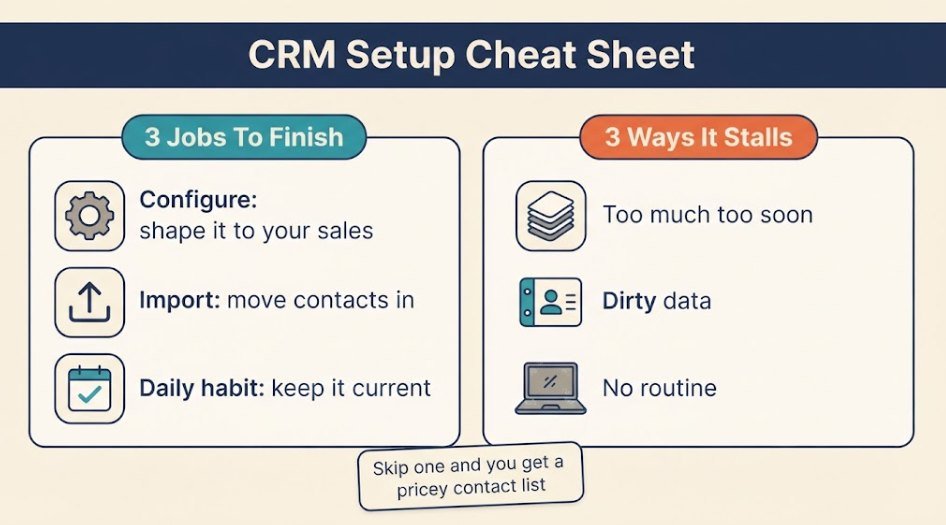
CRM stands for customer relationship management. A CRM is one place to store your contacts, deals, and notes. Setup is everything you do to make it ready for daily use. Zoom’s CRM onboarding guide splits it into three jobs:
- Configure: shape the tool to match how you sell.
- Import: move your existing contacts and deals in.
- Build the habit: use it every day so it stays current.
Skip any one of the three and you get an expensive contact list. The software is rarely the problem. ConvergeHub points to poor user adoption as the top reason CRM projects fail. Easyly says the same: failures are about people and messy data, not features.
In small businesses, setups usually stall in one of three ways:
- Too much, too soon: dozens of fields and automations on day one.
- Dirty data: duplicates and dead leads that nobody trusts.
- No routine: nobody opens the CRM, so it goes stale.
Do you need one yet? Instant Press suggests a CRM once you manage more than 20 active relationships, or once you have missed a follow-up twice in a month. Below that, a spreadsheet can work for a while.
Step 1: Define Your Goals and Sales Process
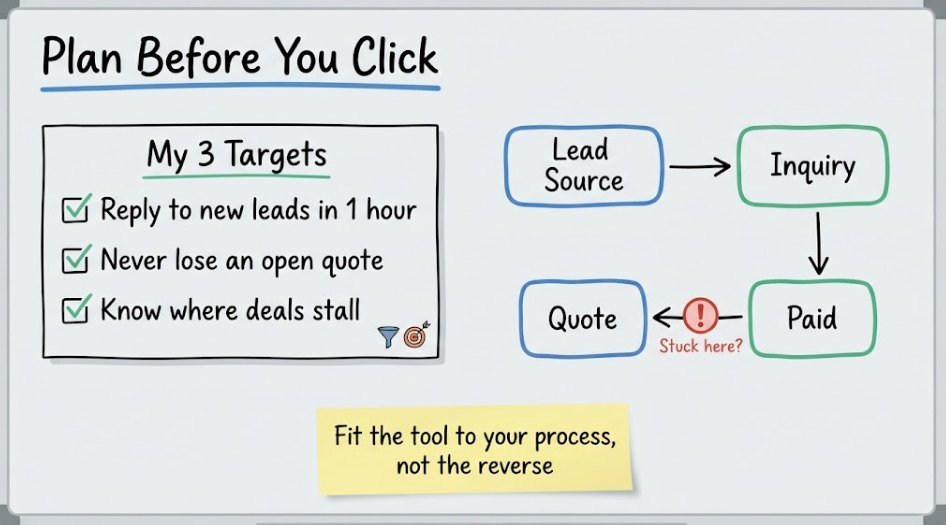
Do this before you open any software. Write down two or three results you want. Keep them measurable. Easyly gives good examples, like replying to every new lead within an hour, or never losing track of an open quote.
Next, map your sales process on one page. Answer three questions:
- Where do leads come from? Website, referrals, social, walk-ins.
- What steps does a lead go through? For example: inquiry, quote, decision, paid.
- Where do deals get stuck? This is where your CRM will earn its money.
This page becomes your blueprint. You will build your pipeline from it in Step 4. Configure the CRM around your process. Do not bend your process around the default settings.
Step 2: Choose a CRM That Fits Your Size and Budget (including free options)
There are hundreds of CRMs. You only need to look at three or four. Pick by team size and budget, not by feature count. Our guide on how to choose business software covers the general method. Here is the short version for CRM.
| Business size | Best pick | Starting price | Watch out for |
|---|---|---|---|
| Solo or 1–3 people, tight budget | HubSpot free CRM or Zoho CRM Free | $0 | User and feature caps; automation is mostly paid |
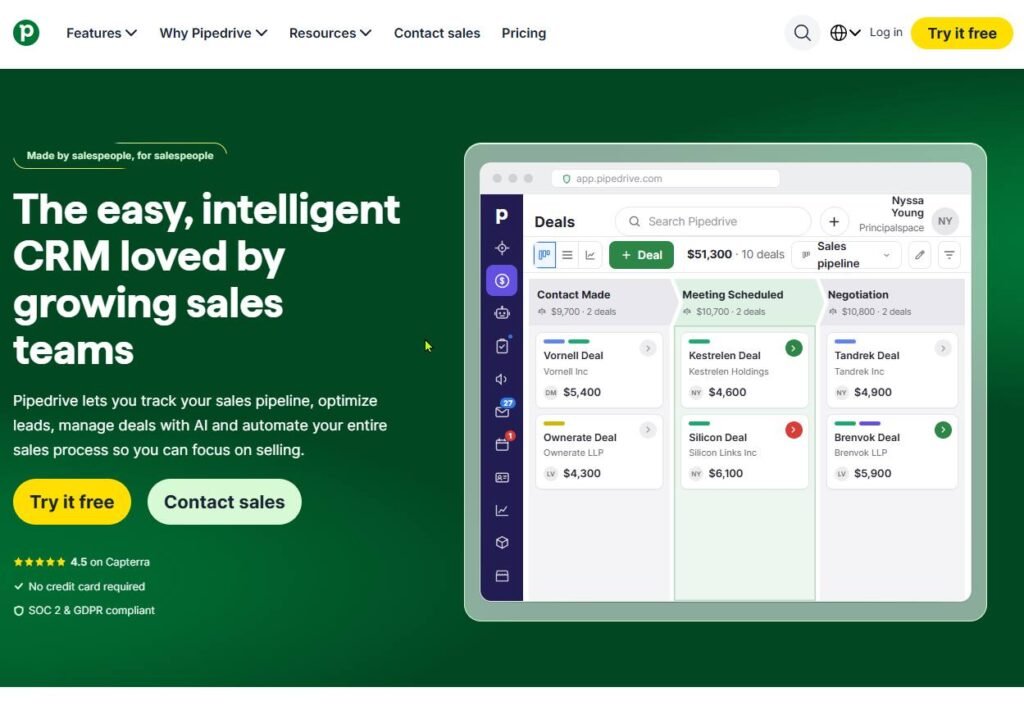
| 2–10 people, sales-driven | Pipedrive | About $15 per user per month | Light on marketing and support tools |
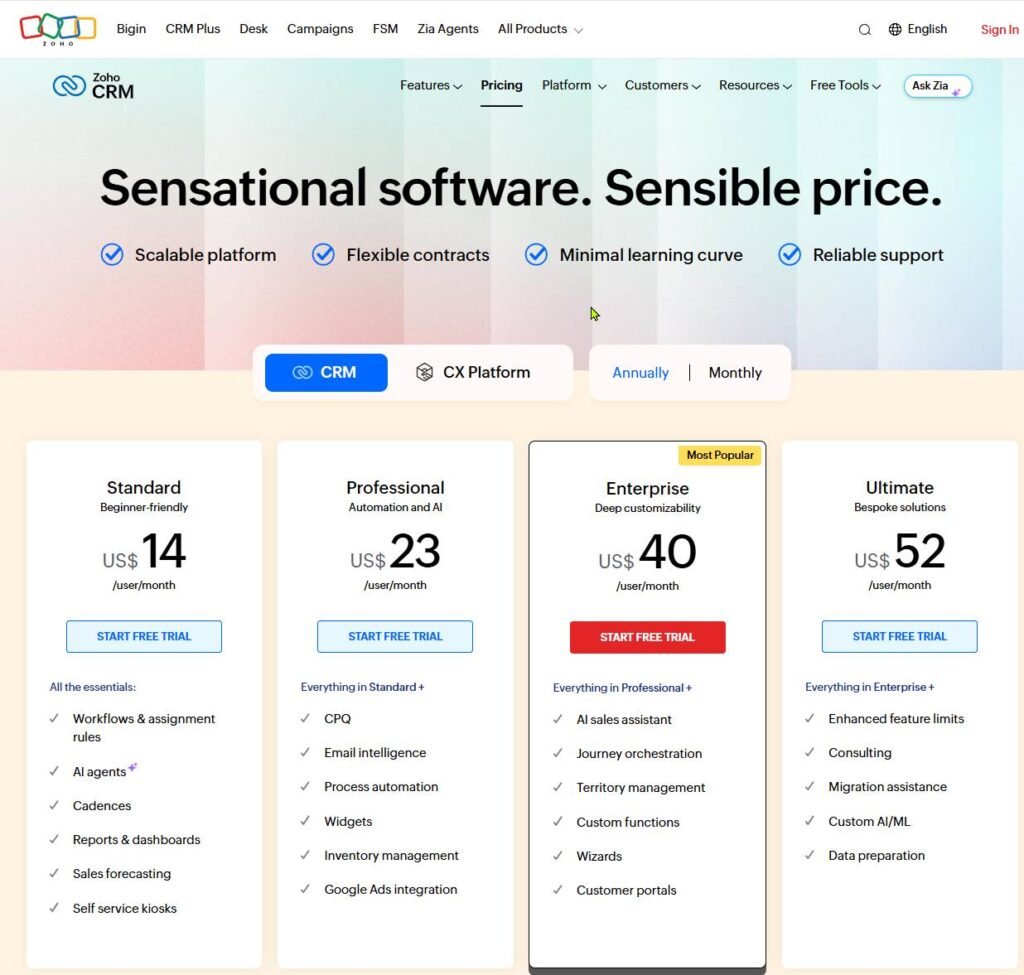
| 3–15 people, want one tool for everything | Zoho CRM Standard | $14 per user per month (annual), $20 monthly | Interface is less polished than rivals |
| Growing team, ease of use first | HubSpot Starter | About $20 per seat per month | Costs climb fast on higher tiers |
| One person, under 20 active clients | A spreadsheet, for now | $0 | Breaks once follow-ups pile up |
Prices come from recent 2026 sources and change often, so confirm them on each vendor’s page. Zoho’s free edition covers up to three users, and paid plans start at $14 per user per month. HubSpot’s free plan has no end date, but it is more limited than older guides claim. Paid plans begin near $20 per seat. Pipedrive and Zoho pricing is also compared in Instant Press’s setup playbook. If you run a small team, the broader business software for small business guide shows how a CRM fits with your other tools.
What free plans give you
- Contact records and deal tracking
- Tasks and basic reminders
- Zero cost while you learn
What you usually give up
- Workflows and automation
- Higher user and contact limits
- Advanced reports and priority support
Our pick by size: Solo or tiny team? Start free. A small sales team? Try Pipedrive. Want sales, marketing, and support in one place on a budget? Choose Zoho. Then follow Instant Press’s advice: trial your top two for a week each, and keep the one you actually open.
Step 3: Clean and Import Your Contacts
This step decides whether you will trust your CRM. A 2025 Validity report, cited by Easyly, found that 37% of CRM users lost revenue because of poor data. Clean first. Import second.
- Back up. Export everything from your spreadsheet or old tool and save a copy.
- Delete duplicates. One record per person or company.
- Archive dead leads. If you will never call them again, keep them out of the CRM.
- Standardize formats. Same style for phone numbers, names, and deal stages.
- Test with 50 to 100 records. Check they landed in the right fields.
- Import the rest. Most CRMs accept a CSV file.
The small test batch matters. Zoom notes that field-mapping problems only show up once real data moves through. Better to find them with 50 records than 5,000.

Step 4: Build Your Pipeline, Fields, and First Automations
Now use the one-page map from Step 1. A pipeline is a row of stages that a deal moves through. Name the stages in words your team already uses. Instant Press suggests five to seven stages. A simple example:
New Lead → Contacted → Quoted → Negotiation → Won or Lost
Keep custom fields to ten or fewer at the start. Every extra field is one more thing you have to fill in, and that kills the habit. A roofer might add property address and roof type. A trainer might add goals and session package. Add more only when a real gap appears.
Then add three to five automations. These are the best ones to start with:
- Follow-up reminder: a task is created within 24 hours of every new lead.
- Stuck-deal nudge: an alert when a deal sits in one stage for seven days.
- Stage-change alert: a message when a deal moves to Quoted or Won.
- Lead source tag: website form leads are marked “Website” automatically.
Resist the urge to switch on every feature. ConvergeHub advises a phased rollout: add one new capability only after the last one has stuck. If you want help turning reminders into a daily system, see how to manage business tasks with software.
Step 5: Connect Your Email and Train Your Team
Connect your email first. Gmail and Outlook both work with most CRMs. Once linked, your emails log themselves against each contact. Instant Press calls this the most important integration because it turns a database into a conversation history. You also save time. Xero’s guide notes that linking email and calendar removes the need to enter the same data twice.
Training should be short and tied to real work. A 20-minute session on logging today’s actual leads beats a long feature tour. Teach only the daily actions: log a call, update a stage, add a note. Our guide on how to use CRM software walks through those habits in more detail.
If you are the only user, you still need a routine. This is what keeps a CRM from going stale:
- Pick a fixed time each week. Fifteen minutes is enough.
- Update every open deal. Move it forward or mark it lost.
- Log missing notes. Xero suggests logging details within 24 hours.
- Check what is stuck. Ask which deals have not moved in a week.
If you have a team: use the CRM where they can see you do it. Pull the pipeline up in your weekly meeting. Reps follow what the boss uses, and they ignore what the boss ignores.

How Long Does CRM Setup Take?
Less than you fear. The time depends on team size and how messy your data is, not on how many features the CRM has. Easyly gives these ranges for a purpose-built small business CRM:
| Team size | Data cleanup | Setup and training | Full adoption |
|---|---|---|---|
| 1–3 people | 1–2 days | Half a day, plus a few days of rollout | About 1 week |
| 4–10 people | 2–4 days | 1–2 days, plus about a week of rollout | 2–3 weeks |
| 11–25 people | 3–5 days | 2–3 days, plus 1–2 weeks of rollout | 3–5 weeks |
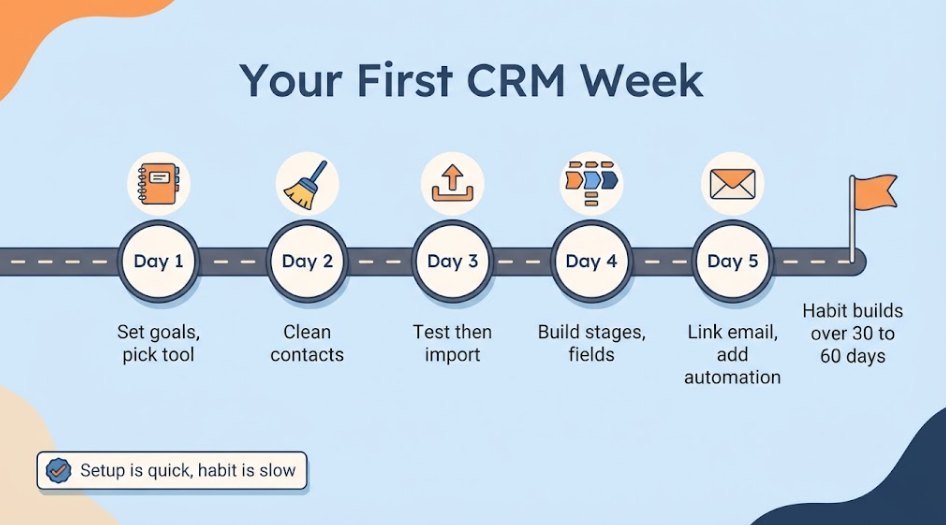
Other sources agree. Xero says most small businesses are up and running within a week. Instant Press puts basic setup at one to two days, and habit-building at 30 to 60 days. Plan for both: a fast setup, then a slower habit.
For a team of one to three, here is a realistic five-day plan:
- Day 1: write your goals and sales map. Choose your CRM.
- Day 2: clean your contact list.
- Day 3: import a test batch, check it, then import the rest.
- Day 4: build your pipeline and add your essential fields.
- Day 5: connect email and turn on your first automations.
Common CRM Setup Mistakes
These mistakes show up again and again when owners work out how to set up CRM for small business. They are also the reasons setups stall. Each one has a simple fix.
What stalls a setup
- Importing messy data: duplicates and dead leads on day one.
- Over-customizing: dozens of fields before first use.
- Switching on every feature: overload leads to abandonment.
- No owner: if everyone owns it, nobody does.
- Buying an enterprise tool: it needs a consultant to turn on.
What to do instead
- Clean first: archive dead weight before you import.
- Start with the basics: ten fields or fewer, default stages renamed.
- Add one feature at a time: wait until the last one sticks.
- Name one admin: one person for data and settings.
- Choose a small business CRM: it should work without paid help.
Most of these come from Easyly’s list of implementation mistakes and ConvergeHub’s. Another common trap is having no daily habit. Zoom warns that a CRM you do not open daily gets abandoned within weeks, however well it is configured.
Already stalled? Rescue it in three moves. First, list what is half done. Second, strip it back to three things: clean contacts, one pipeline, and email connected. Third, block 30 minutes this week to finish just those. Add nothing else until they are in daily use.
FAQ: How to Set Up CRM for Small Business
What are the 5 steps to set up a CRM for a small business?
First, define your goals and sales process. Second, choose a CRM that fits your size and budget. Third, clean and import your contacts. Fourth, build your pipeline, fields, and first automations. Fifth, connect your email and train your team.
Is there a free CRM I can use?
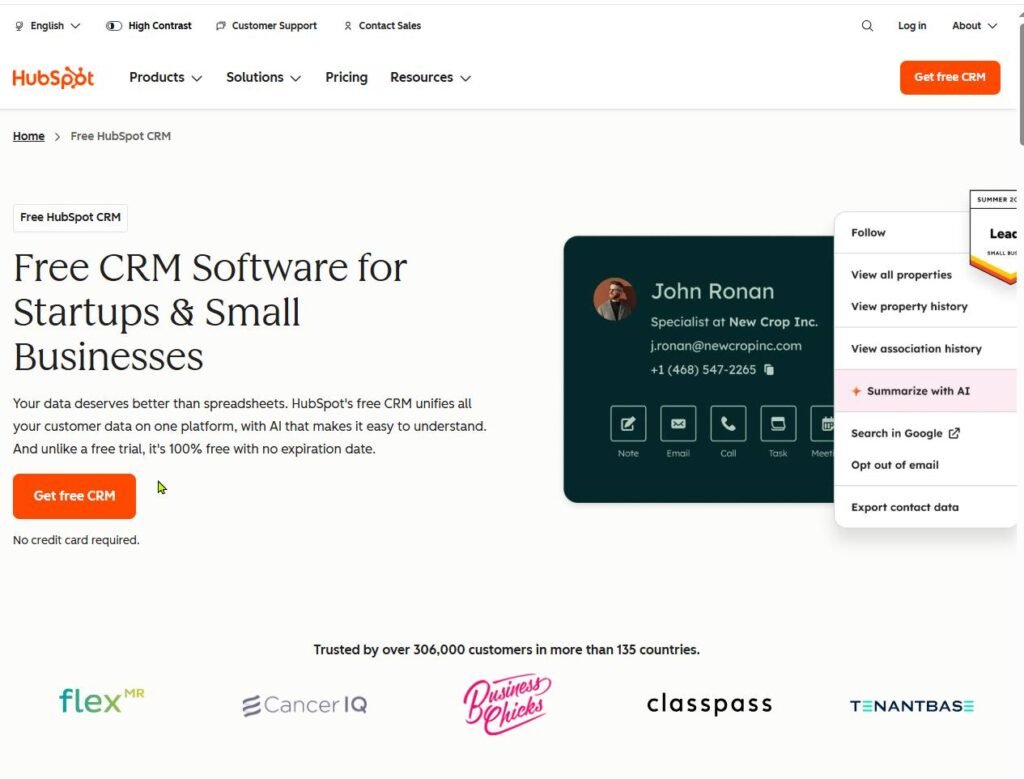
Yes. HubSpot offers a free CRM with no end date, though its limits are tighter than they used to be. Zoho CRM has a free edition for up to three users. Free plans work well for a first pipeline. Expect to pay once you need automation or more users.
Can I build my own CRM in Excel?
You can, and it is fine for a short time. Instant Press says a spreadsheet can work if you have fewer than 20 active relationships and short sales cycles. It stops working when you need reminders, shared access, or a clear view of your pipeline. At that point, move to a real CRM.
How much does it cost to set up a CRM?
The software ranges from free to about $50 per user per month. Xero notes that many simple CRMs have free tiers, or start around $10 to $30 per user. Watch for extra costs such as data migration, training, and premium support. Your own time is the biggest cost, so keep the setup small.
Which CRM is best for beginners?
Pick the one you will open every day. For most first-timers, that means a free plan from HubSpot or Zoho, or Pipedrive if you want a simple visual pipeline. Use our guide on choosing business software to compare options against your budget.
Do I need a consultant to set up a CRM?
Almost never. Easyly says a modern small business CRM is built for the owner or an admin to set up in an afternoon. If a tool needs a paid consultant just to turn on, it is probably an enterprise product and the wrong fit.
How do I fix a CRM I started but stopped using?
Do not start over. Strip the setup back to clean contacts, one pipeline, and connected email. Remove fields and automations you never use. Then set a 15-minute weekly check-in. Once that routine holds for a month, add one feature at a time.
Final Thoughts on How to Set Up CRM for Small Business
A CRM pays off only when you use it. So keep the setup small and finish it. That is how to set up CRM for small business and make it stick. Define your goals, pick a tool that fits your size, clean your contacts, build a simple pipeline, and connect your email. Then protect the habit with a weekly check-in.
Block time this week and start with Step 1. Want more practical guides like this one? Browse our Business Software hub.
