
What can you store inside a CRM? A CRM is more than an address book. It can hold contacts, emails, deals, tasks, payments, support tickets, files, and more. This guide shows the 9 types of data to track, what to leave out, and what to check before you buy.
Who this is for
Small business owners who are picking their first CRM and want to know what it can actually hold.
What you will get
A plain list of data types, a sample record, a day-one field list, and the limits to check before you pay.
Most first-time buyers ask the same thing: “What can you store inside a CRM?” The answer decides whether a CRM pays off. Store too little, and you get an expensive contact list. Store too much, and your team stops using it. If you want the basics first, read our guide on how to use CRM software. For the official definition, see Salesforce’s explainer on what a CRM is.
What Can You Store Inside a CRM? A Quick Answer
What can you store inside a CRM? Everything that tells you who your customers are and how you work with them. That means contact details, company details, calls, emails, meetings, deals, tasks, purchases, feedback, support tickets, files, and product lists.
Here are the 9 types in one view:
- Contact data: names, emails, phone numbers, job titles.
- Company data: business name, size, industry, website.
- Interaction data: calls, emails, meetings, notes.
- Deal data: deal value, stage, close date.
- Task data: follow-ups, reminders, due dates.
- Purchase data: orders, invoices, renewal dates.
- Feedback and support data: surveys, reviews, tickets.
- File data: contracts, quotes, proposals, PDFs.
- Product and inventory data: product lists, prices, stock notes.
Short version: If it helps you sell, serve, or follow up, it belongs in your CRM. If it does not, leave it out.
What Does a CRM Record Look Like?
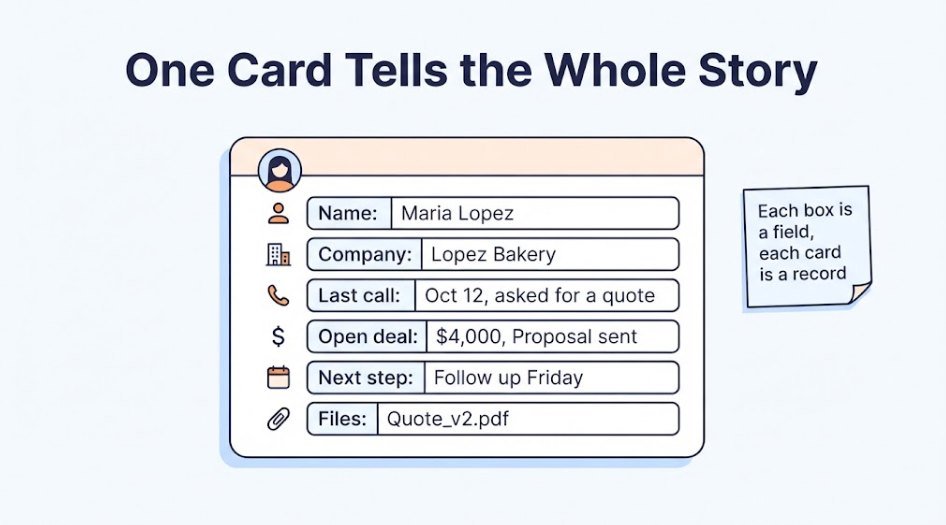
A CRM keeps data in records. Think of a record as one card for one person, company, or deal. Each card has fields. A field is one box on the card, like “Email” or “Deal value.”
Here is a sample record for a small business owner named Maria:
| Field | Example | Type of data |
|---|---|---|
| Name | Maria Lopez | Contact |
| Company | Lopez Bakery | Company |
| Last contact | Call on Oct 12, asked for a quote | Interaction |
| Open deal | Catering contract, $4,000, Proposal sent | Deal |
| Next step | Follow up on Friday | Task |
| Past orders | 3 orders this year | Purchase |
| Attached file | Quote_v2.pdf | File |
One screen shows the full story. That is the main reason people buy a CRM. If the word “CRM” still feels fuzzy, our post on what business software is gives the wider picture.
Contact and Company Data (Identity and Descriptive)
This is the base layer. Every CRM starts here. It splits into two kinds of data.
Identity data (who they are)
- Name: first and last name.
- Contact info: email, phone, address.
- Job title: tells you if they can approve a purchase.
- Social profiles: LinkedIn or other business pages.
Descriptive data (what they are like)
- Company details: industry, size, website, location.
- Source: how they found you (ad, referral, website).
- Tags: labels like “VIP” or “Newsletter.”
- Preferences: best contact time, language.
Tip: link people to their company. If three people work at one client, you should see all three on one company page. That keeps your team from calling the same business twice.
Interaction Data: Calls, Emails, Meetings, and Notes
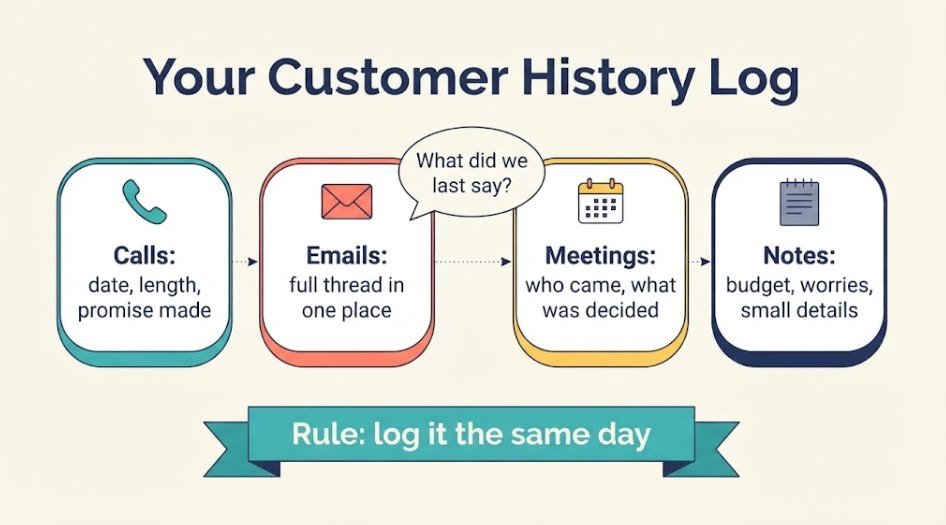
Interaction data is the history of every touchpoint. It answers one question: “What did we last say to this person?” Most CRMs log it in four forms:
| Type | What gets saved | Why it helps |
|---|---|---|
| Calls | Date, length, short summary | Shows who was called and what was promised |
| Emails | Sent and received messages | Gives the full thread in one place |
| Meetings | Date, attendees, outcome | Keeps the team on the same page |
| Notes | Free text, like budget or concerns | Captures details that fit nowhere else |
Many CRMs link to your inbox and log emails on their own. Calls and notes are often manual, so set a simple rule: log it the same day. Want a full routine for calls? Read our guide to using CRM software day to day.
Deals, Tasks, and Pipeline Data
This is the data that links to revenue. It tells you what is coming in and what needs action.
Deals and pipeline
A deal is a possible sale. A pipeline is the set of steps a deal moves through, like “New lead,” “Quote sent,” and “Won.” For each deal, store:
- Deal value: the expected amount.
- Stage: where the deal sits right now.
- Close date: when you expect a yes or no.
- Owner: who on your team handles it.
- Lost reason: why a deal failed. This is gold for later.
Tasks and reminders
Tasks are the next steps: call back, send a quote, renew a contract. Each needs an owner and a due date. Without these, follow-ups slip. For more on keeping work on track, see our post on how to manage business tasks.
ROI note: A pipeline view lets you see your expected sales at a glance. If you only track one thing beyond contacts, track deals.
Purchase, Feedback, and Support Data (Quantitative and Qualitative)
After the sale, the CRM keeps working. This data comes in two kinds: numbers (quantitative) and words (qualitative).
Quantitative (numbers)
- Order history: what they bought and when.
- Total spend: shows your best customers.
- Renewal dates: tell you when to reach out.
- Survey scores: such as a 1–10 rating.
Qualitative (words)
- Feedback comments: what customers said in their own words.
- Support tickets: problems raised and how you fixed them.
- Complaints: a record so nothing is lost.
- Praise: great for testimonials, with permission.
Why it pays off: a customer who bought three times is worth a different call than a first-time buyer. A customer with an open complaint should not get a sales pitch. Your CRM shows both at once.
Files, Documents, and Inventory Data
Files and documents
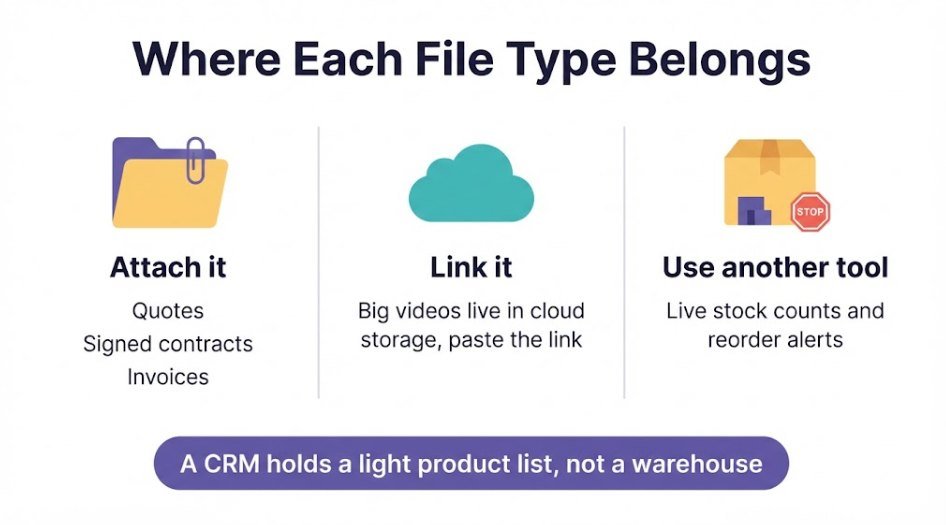
Most CRMs let you attach files to a record. Common ones:
- Quotes and proposals.
- Signed contracts.
- Invoices and receipts.
- Brand guidelines or project briefs.
Keep big files, like videos, in cloud storage. Then paste the link into the CRM. This saves space and keeps the system fast.
Product and inventory data
A CRM can hold a product list: names, prices, and codes. You add these to quotes and deals. That is handy and light.
Real inventory tracking is different. Live stock counts, reorder alerts, and warehouse data usually belong in an inventory or accounting tool. Some CRMs link to those tools. Few do the job well on their own. If you need both, see our overview of business management software.
What a CRM Stores for 3 Types of Business
The data you track depends on how you sell. Here is a clear guide, with a best fit for each.
| Business type | Track first | Track later | Best fit |
|---|---|---|---|
| Service business (consultants, agencies, trades) | Contacts, calls, quotes, deals, follow-up tasks | Contracts, renewals, referral source | A simple CRM with a strong pipeline and email sync |
| Online or retail shop | Customer details, order history, total spend, support tickets | Product interests, review requests, repeat-buy dates | A CRM that connects to your store and email tool |
| B2B or project-based company | Companies, multiple contacts, deal stages, files, owners | Custom fields, contract dates, account notes | A CRM with company records and team permissions |
Solo owner or team of 1–5: pick a simple tool and track only contacts, deals, and tasks. Team of 6–25: add company records, files, and reports. Do not pay for features you will not use in the first six months. Our guide on business software for small business helps you size your needs.
What You Should Not Store in a CRM
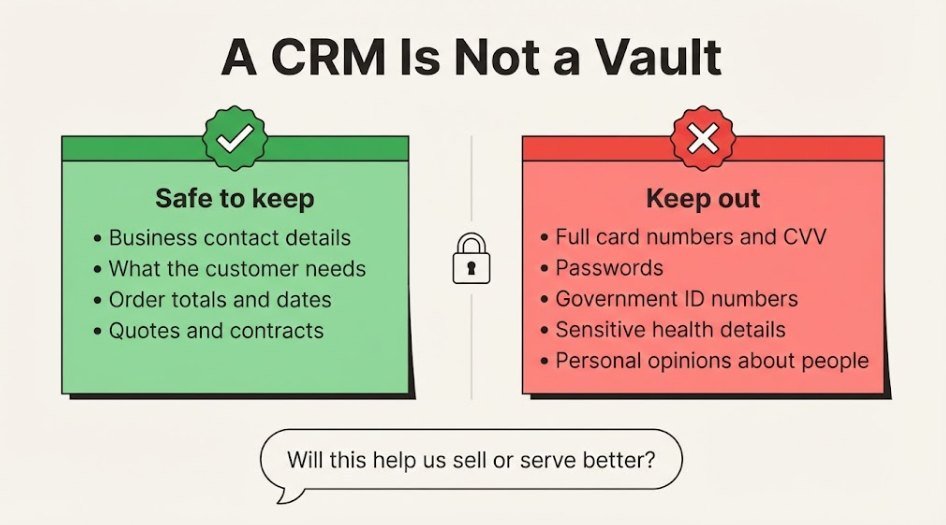
A CRM is not a vault. Some data adds risk and no value. Here is a quick split between what is safe to store and what to keep out:
Safe to store
- Business contact details.
- Notes about what the customer needs.
- Order totals and dates.
- Quotes and signed contracts.
Keep out
- Full card numbers and CVV codes: use a payment processor instead.
- Passwords and login details: use a password manager.
- Government ID numbers: only if the law requires it and your CRM is built for it.
- Health or other sensitive details: unless your CRM is set up for that rule.
- Personal opinions about people: notes can be seen by the customer in some cases.
Why it matters: the less sensitive data you hold, the less you can lose. The FTC’s guide to protecting personal information says to keep only what you need. Card data has its own rules too. See the PCI Security Standards Council. If you sell to people in Europe, read the basics of GDPR. Also, tell customers how you use their data. You can read our own privacy policy as an example of plain wording.
Rule of thumb: Ask, “Will this help us sell or serve better?” If the answer is no, do not enter it. This is general information, not legal advice. Check the rules that apply in your country.
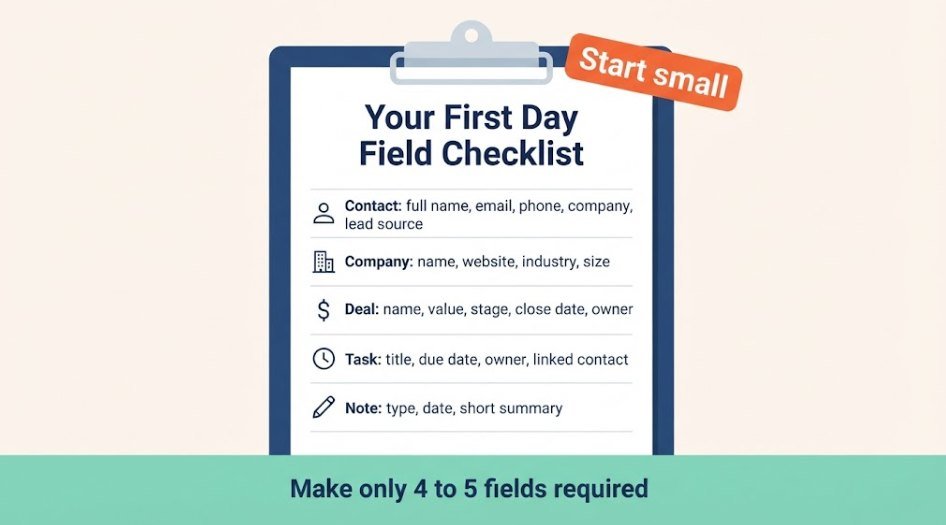
Your Day-One Starter Field List
Do not build 50 fields on day one. Start with this short list. Add more only when your team asks for them.
| Record | Starter fields | Required? |
|---|---|---|
| Contact | Full name, email, phone, company, lead source | Name and email |
| Company | Company name, website, industry, size | Name |
| Deal | Deal name, value, stage, close date, owner | Name, value, stage |
| Task | Task title, due date, owner, linked contact | All four |
| Note or activity | Type (call, email, meeting), date, short summary | Type and date |
| Customer | Last purchase date, total spend, renewal date | Optional at first |
| File | Quote, contract, or proposal attached to the deal | Optional |
Make 4–5 fields required. Fewer required fields means more complete records. Also set one rule for naming and tags so your list stays clean. If you are still comparing tools, our guide to choosing business software covers the full checklist.
How Much Can a CRM Hold? Limits to Check Before You Buy
Every CRM has limits. Free and low-cost plans often have the tightest ones. Check these before you pay:
| Limit | What to ask | Why it matters |
|---|---|---|
| Contact or record count | How many contacts can I store on my plan? | You may hit a cap as you grow and be forced to upgrade |
| Storage space | How much file storage do I get per user or per account? | Contracts and PDFs add up fast |
| Custom fields | Can I add my own fields? How many? | Lets the CRM match how you work |
| Pipelines and deal stages | How many pipelines are allowed? | Matters if you sell more than one kind of service |
| Email and automation limits | Are there monthly send or workflow limits? | Can quietly block your follow-ups |
| Data import and export | Can I import a spreadsheet and export my data any time? | Protects you from being locked in |
| History and reports | How far back does data and reporting go? | Some plans limit older records |
Limits change by plan and by vendor, so read the current pricing page. For example, compare the plan tables from HubSpot and Zoho CRM. Look at the row for records, storage, and users. Then compare the cost at your team size today and in one year.
Green flags
- Limits are listed clearly on the pricing page.
- Easy export of all your data.
- A free trial with your real data.
Red flags
- Hidden caps on records or storage.
- Export is paid or blocked.
- Price jumps sharply once you pass a small user count.
Not sure if you are ready? Read when you need business software. You can also browse more guides in our Business Software Hub.
Frequently Asked Questions
What can you store inside a CRM?
You can store contact and company details, calls, emails, meetings, notes, deals, tasks, purchases, feedback, support tickets, files, and product lists. Together, these give you one clear view of each customer.
What is the most important data to track first?
Start with contacts, deals, and tasks. These three give the fastest return. You see who your leads are, what they are worth, and what to do next.
Can a CRM store files like contracts and invoices?
Yes. Most CRMs let you attach files to a contact, company, or deal. Check your plan’s storage limit. For large files, store them in cloud storage and add the link to the record.
Can a CRM replace my inventory system?
Usually no. A CRM can hold a product list with prices for quotes. Live stock counts and reorder alerts are better handled by an inventory or accounting tool. Many CRMs connect to those tools. See our guide to organizing business operations with software.
Is it safe to store customer data in a CRM?
It can be, if you pick a trusted vendor, use strong passwords, set user permissions, and store only what you need. Never keep full card numbers or passwords in notes. Check the laws that apply to you.
Can I move my spreadsheet data into a CRM?
Yes. Most CRMs import CSV files. Clean your sheet first: remove duplicates, fix blank emails, and use one column per field. Then map each column to a CRM field during import.
How many custom fields do I need?
Fewer than you think. Begin with the starter list above and add a field only when the team needs it for a real decision or report.
Final Thoughts
So, what can you store inside a CRM? A CRM can hold 9 types of data: contacts, companies, interactions, deals, tasks, purchases, feedback and support, files, and products. You do not need all of them on day one. Start with contacts, deals, and tasks. Add the rest as your team grows. Keep sensitive data out, and check storage and record limits before you sign up.
Next step: write your starter field list, then test two or three CRMs with your own data. Want more guides like this? Visit our Business Software category and pick your next read.
