
CRM software features for small business come down to 8 worth having and 4 you can skip for now. Most small businesses use a handful of CRM features and pay for dozens, so this guide also includes a 30-minute test to run before you pay for anything.

Buying a CRM for the first time is confusing. Every vendor lists long feature tables, and every plan looks like it needs one more upgrade. The result is a common one: owners buy automation and AI tools, then end up using little more than an address book. A CRM statistics roundup citing Capterra data found that about 37% of users rate plain contact management as the most essential feature, even though many buyers ask for sales automation.
This guide to CRM software features for small business is written for owners comparing CRM tools for the first time. The goal is simple: help you pay only for the features you will actually use. It draws on current guides from the U.S. Chamber of Commerce, CRM.org, NetHunt, and Atlantic Tomorrow’s Office, plus vendor pricing pages checked in fall 2026. Last reviewed: November 2026. If you are still deciding whether you need software at all, start with how to choose business software.
Quick answer: The CRM software features for small business worth paying for are contact management, pipeline tracking, follow-up reminders, email and calendar sync, basic automation, simple reports, mobile access, and easy setup with data export. Skip advanced AI scoring, full marketing suites, custom objects, and enterprise controls until your team outgrows the basics.
CRM Software Features for Small Business: What You Actually Need
A CRM is a shared place for customer information. It answers three questions: who are my customers, where are they in the sales process, and what should happen next. Everything else is an extra.
A useful way to sort features is by how often you will touch them. NetHunt groups CRM features into three tiers, and the idea works well for small teams:
- Core: used every day. Contacts, pipeline, and tasks.
- Helpful: saves time every week. Email sync, basic automation, and reports.
- Extra: useful only at larger scale. Forecasting, data enrichment, and deep customization.
Pay for core and helpful features first. Treat extras as a future upgrade, not a starting requirement. Not sure what a CRM can even hold? See what you can store inside a CRM.
1. Contact Management and Customer History
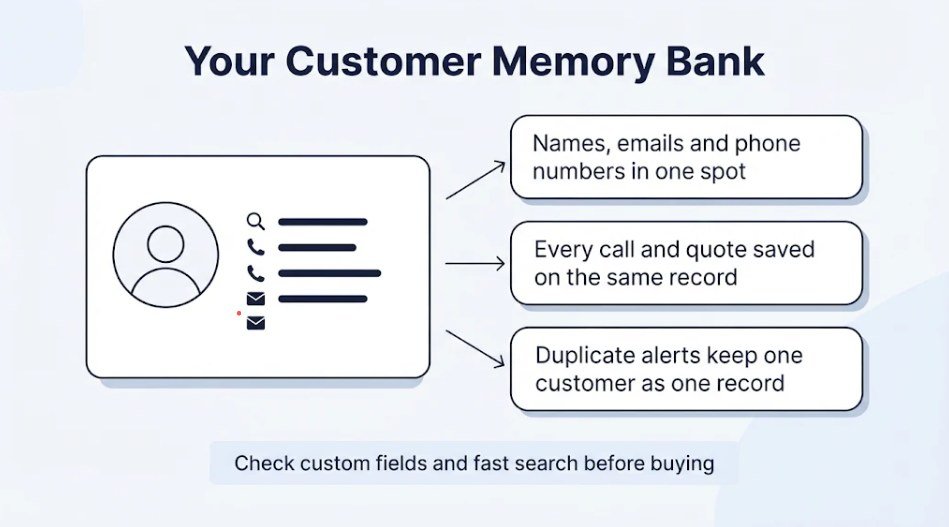
This is the foundation of any list of CRM software features for small business. Every CRM should store names, emails, phone numbers, company details, and notes in one searchable place. Just as important is history: every call, email, and quote attached to the same record. The U.S. Chamber notes that a shared, searchable database lets several team members check data and note customer preferences without asking each other.
What to check before you buy:
- Custom fields for details you track, such as job address or renewal date
- Duplicate prevention, so one customer does not become three records
- Fast search and the ability to link people to companies and deals
If a CRM does this one job well, you already have most of the value. For ideas on what else is worth recording, read 9 types of data every small business should track.
2. Sales Pipeline and Lead Tracking
A pipeline shows every deal and the stage it is in. Without it, a CRM is just an address book. Keep your stages simple. A basic setup looks like this:
- New lead
- Contacted
- Quote sent
- Won or lost
Also look for lead source tracking. Knowing whether a lead came from your website, a referral, or an ad tells you where to spend your time. NetHunt adds that time-in-stage reports show where deals stall, which is handy once you have more than a few open deals.
You do not need ten pipelines or complex scoring. One clean pipeline is enough to start. See CRM pipeline examples for small sales teams for setups you can copy.
3. Task and Follow-Up Reminders
Lost deals often come from silence, not rejection. CRM.org lists forgotten follow-ups as the first sign a business needs a CRM, because a lead that never hears back is revenue gone.
A good reminder feature lets you attach a task to a contact or deal, set a due date, and get a nudge. Check that tasks can be assigned to teammates and that you can see “today’s tasks” in one view. This matters more than any dashboard.
Reminders work best when you also record what was said. Our guide on how to log sales calls in CRM software shows a simple routine. If your tasks live in more places than the CRM, see how to manage business tasks with digital tools.
4. Email and Calendar Integration
Email is where most customer conversations happen. If you must copy emails into the CRM by hand, you will stop doing it within weeks. Look for two-way sync with Gmail or Outlook, so messages are logged on the right contact automatically. Calendar sync helps too, since meetings can be booked and tracked in one place.
Here is the trap: this feature is often locked behind a higher plan. According to Carly’s small business CRM comparison, email sync starts on the Growth tier for both Pipedrive and Capsule, while Less Annoying CRM includes email logging in its single plan. The Pipedrive pricing page shows the same pattern, with full email sync starting above the entry plan.
Check the plan, not the feature list: Always confirm that email sync is included in the exact plan you intend to buy. A cheap entry plan without it can leave you updating the CRM by hand.
5. Basic Workflow Automation
Automation removes repeat work. Among the CRM software features for small business, a few simple automation rules are plenty:
- Assign a new lead to the right person
- Create a follow-up task when a quote is sent
- Send an instant reply when a web form is submitted
- Move a deal to the next stage after a trigger
Atlantic Tomorrow’s Office gives a smart buying tip: do not just ask whether a CRM “has automation.” Ask the vendor to show how easily your team can build and change the rules you expect to use. A feature that needs a developer is not a small business feature.
Start with two or three rules, then add more later. Our post on CRM automation examples lists eight workflows and which to build first.
6. Simple Reports and Dashboards
Reports turn your data into decisions. The U.S. Chamber describes dashboards as a single-page view of key numbers, such as the value of deals won. For a small business, three views cover most needs:
- Deals by stage, to see what is in progress
- Deals won and lost, to track results
- Leads by source, to see what brings customers in
Ready-made reports are enough. Custom report builders matter later, when you have analysts or several teams. If a report takes an expert to read, it is not helping a five-person business.
7. Mobile Access
If you work from job sites, events, or client offices, you need your customer data in your pocket. Most CRMs offer iOS and Android apps, but the U.S. Chamber warns that functionality differs between providers. Its advice is practical: have your team test the app and confirm they can view customer information and complete key tasks.
Test these on your phone during the trial: search a contact, log a call, add a note, and set a reminder. If any of these feels clumsy, you will not use it in the field. If you mostly work at a desk, mobile can rank lower on your list.
8. Easy Setup, Data Import/Export, and Support
This one rarely appears in feature tables, yet it decides whether you keep the CRM. CRM.org suggests looking for software that feels intuitive within the first 30 minutes, and warns that many owners sign up, import contacts, and then stop. A CRM only works if it becomes part of your day.
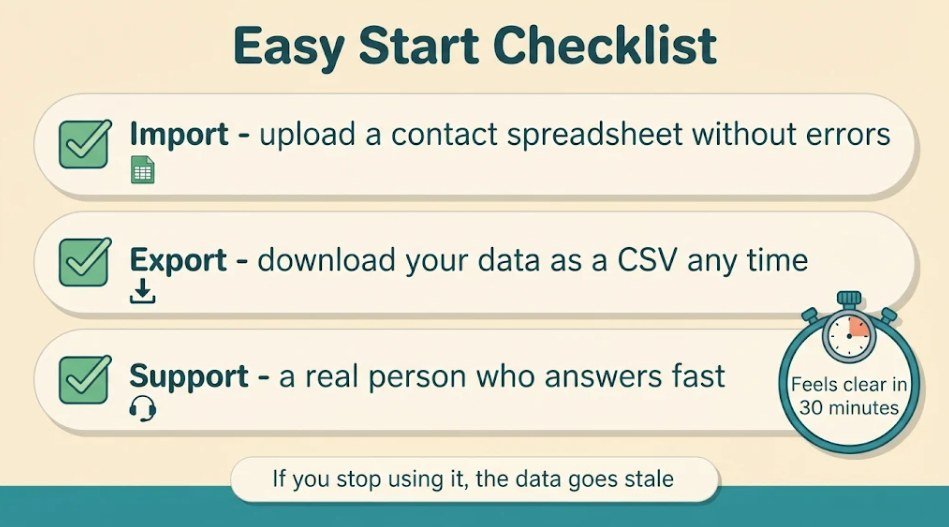
Check three things:
- Import: Can you upload a spreadsheet of contacts without errors?
- Export: Can you download your data as a CSV file if you leave? Here is how to export contacts from any CRM.
- Support: Is help available from a real person, and is it free? Carly’s comparison notes that Less Annoying CRM offers phone and email support even before you pay.
Coming from spreadsheets? Follow how to move customer data into a new CRM to avoid losing records, then use our small business CRM setup steps so the tool does not end up half configured.
4 CRM Software Features Small Businesses Can Skip (For Now)
These CRM software features for small business are not bad. They are just early. CRM.org warns that many small businesses overbuy and end up paying for features that gather dust, and suggests focusing on contact tracking, pipeline visibility, and follow-up reminders first. Revisit this list when your team or sales volume grows.

1. Advanced AI lead scoring and sales forecasting
Forecasting needs enough deals and history to be accurate. With a few open deals, you can see your pipeline at a glance. NetHunt rates sales forecasting as a nice-to-have for mid-sized teams, not a starting need. AI tools are also often tied to higher plans. For example, Pipedrive’s AI feature page shows that some AI capabilities sit on upper tiers, and some are still in beta.
2. Full marketing automation suites
Email campaigns, landing pages, and nurture sequences are useful if you have a large contact list. If you do not, a simple email tool does the job. Costs can jump quickly here. Carly’s breakdown reports that HubSpot’s Sales Hub Professional runs $100 per seat per month plus a required one-time $1,500 onboarding fee, which is a steep step for a five-person team.
3. Custom objects and heavy customization
Custom objects let you track things outside normal contacts and deals, such as equipment or projects. Atlantic Tomorrow’s Office recommends them for growing organizations with complex processes. For a small team, custom fields are usually enough. More flexibility also means more setup, and someone has to own it.
4. Enterprise security, territory management, and omnichannel messaging
Granular permissions, audit trails, and territory rules matter when many people share one system. The U.S. Chamber lists territory management as an advanced feature, and NetHunt calls omnichannel messaging a nice-to-have. Basic user roles and two-factor login are plenty for a small team.
Rule of thumb: If you cannot name the weekly task a feature will replace, do not pay for it yet.
Which CRM Software Features for Small Business Come With Free vs. Paid Plans?
Free plans are real, but they come with limits on users, records, or features. The table below shows typical free-plan limits and the CRM software features for small business that sit behind a paid tier, based on vendor pages and the comparisons cited above. Prices change often, so confirm them on each vendor’s site.
| CRM | Free option | What to watch |
|---|---|---|
| HubSpot | Free CRM, up to 2 users | Advanced automation and reporting sit on higher tiers |
| Zoho CRM | Free for up to 3 users | Gmail and Outlook integration starts on Standard ($14 per user per month, billed annually) |
| Capsule | Free for 2 users, 250 contacts | Automatic email logging starts on the Growth plan |
| Bigin by Zoho | Free for 1 user, 500 records | Paid editions add email integration and higher limits |
| Brevo | Free plan, up to 50 open deals | Paid plan adds unlimited deals, automation, and advanced reporting |
| Pipedrive | No free plan | Entry plan lacks full email sync |
| Less Annoying CRM | 30-day free trial | One flat plan at $15 per user per month with everything included |
CRM.org adds a useful warning: you will likely outgrow a free tier once you need automation or multiple pipelines. That is fine. Start free, then upgrade only when a real need appears.
A simple way to match a plan to your size:
- Solo owner or freelancer (1–2 users): a free plan covers contacts, one pipeline, and reminders.
- Small team (3–10 users): a low-cost paid plan that includes email sync, so data enters the CRM on its own.
- Growing team (10–25 users): add reporting and light customization once you feel specific pain, not before.
These are starting points, not endorsements. Your best fit depends on your tools and workflow. For a wider view across software types, see our guide to business software for small business.
How Much Do Unused CRM Features Really Cost?
Unused CRM software features for small business cost more than the sticker price suggests. The math is simple: price gap per user, times users, times 12 months.
Here is an example using Freshsales’ listed prices. According to the Freshworks pricing page, Growth is $9 per user per month and Pro is $39, both billed annually. For a team of five:
- Growth: 5 users × $9 × 12 = $540 per year
- Pro: 5 users × $39 × 12 = $2,340 per year
- Gap: $1,800 per year for features such as contact scoring and deal insights that many small teams never open
Add one-time fees, such as the onboarding charge mentioned earlier, and the real cost grows again. CRM.org advises running the numbers at 5, 10, and 20 seats, because a plan that looks cheap today can double as you add users or unlock automation. The figures above are an illustration based on listed prices, not a quote.
There is also a hidden cost: time. Unused features add clutter, and clutter slows adoption. If your team does not use the CRM, your data goes stale. The statistics roundup mentioned earlier cites Validity research finding that 76% of CRM users say less than half of their CRM data is accurate and complete. A simpler tool that people actually update beats a powerful one they ignore.
30-Minute Feature Test to Run During Your Free Trial
To judge CRM software features for small business, do not rely on a demo video. Run the same short test on every tool on your shortlist. You will know in half an hour whether the features you need are real.
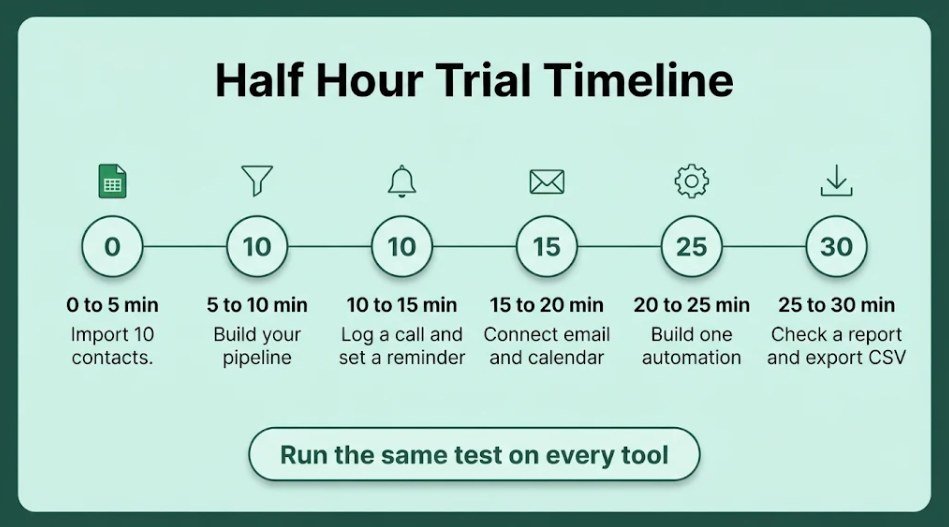
- Minutes 0–5: Import. Upload 10 real contacts from a spreadsheet. Check that names, emails, and phone numbers land in the right fields.
- Minutes 5–10: Build a pipeline. Set up your real stages and add two or three deals.
- Minutes 10–15: Log and remind. Record a call note and set a follow-up task for tomorrow.
- Minutes 15–20: Connect email and calendar. Confirm a sent email appears on the contact. Note whether this needs a paid plan.
- Minutes 20–25: Build one automation. For example, create a task when a deal reaches “Quote sent.” Time how long it takes.
- Minutes 25–30: Report and export. Open a standard report, then export your contacts to CSV.
RapidStart’s small business CRM guide suggests one more check: ask a second person to take over a customer. If they cannot tell what happened and what to do next, the workflow needs work, however polished the dashboard looks.
Afterward, score each feature as “used” or “not used.” Drop any plan feature you did not need. If you pick a winner, our 5-step CRM setup guide is the next read, and 7 ways to use CRM software shows how to get value once you are live.
FAQs About CRM Software Features for Small Business
What CRM features do small businesses need most?
The CRM software features for small business that matter most are contact management, pipeline tracking, and follow-up reminders. Add email sync, basic automation, simple reports, mobile access, and easy data export. NetHunt’s guide names contact management, pipeline management, and automation as the three most universally critical features.
Do I need AI features in a small business CRM?
Not at the start. AI features are often limited to higher plans and may add cost. Focus on a CRM that handles the basics well. You can add AI later if you see a clear use for it.
Is a free CRM enough for a small business?
It can be for solo owners and very small teams. Free plans usually cap users, contacts, or features. Check what triggers a paid upgrade before you commit, and plan to move up once you need automation or more than one pipeline.
How much does CRM software cost for a small business?
CRM.org reports that most small business CRMs fall between $7 and $25 per user per month. Costs rise with add-ons, extra users, onboarding fees, and higher tiers, so always price the plan you actually need.
Which CRM is easiest for beginners?
CRM.org points to HubSpot and Zoho’s Bigin as designed for small teams that want to get started in under 30 minutes. The best test is your own: run the 30-minute trial above on two or three tools and pick the one that feels natural.
How do I avoid paying for CRM features I never use?
List the weekly tasks you want the CRM to handle, then match each one to a feature. Buy only the plan that covers that list. Run a free trial, check which features you opened, and downgrade or skip the rest. Our guide on when you need business software can help you separate real needs from nice-to-haves.
Can I switch CRMs later if I pick the wrong one?
Yes. Most CRMs let you import and export data by CSV. The harder part is retraining your team and rebuilding automations. That is why export ability matters when you buy. See how to move customer data into a new CRM for a safe process.
Final Thoughts
The right CRM is the one your team will actually use. Start with the eight must-have CRM software features for small business, skip the four extras, and test every tool with the same 30-minute routine. Pay for what you use, and upgrade only when a real problem shows up.
For more guides like this, browse the Business Software hub. Prices and plan limits change often. If you spot something outdated, let us know and we will review it.
