

How to move customer data into a new CRM safely comes down to order: back up, clean, test, then import. Many small businesses don’t lose customer records because the CRM is bad. They lose them because the spreadsheet was messy and nobody tested the import. This guide walks you through six steps that protect every contact.
If your customers live in spreadsheets, Gmail, and a few payment tools, the move feels risky. One wrong click and a year of notes can vanish. The good news: how to move customer data into a new CRM is simple when you do it in the right order. If you are still deciding whether a CRM is worth it, start with our guide on how to use CRM software, then come back here.
Last reviewed: November 9, 2026. The steps in this guide follow import guidance from HubSpot and Stripe and the FTC’s CAN-SPAM guide, linked where they are used in this post. CRM limits change, so check your own tool’s help pages before you import.
What Is CRM Data Migration?
CRM data migration means moving your customer information from where it lives now into a new CRM. For most small businesses, “where it lives now” is a spreadsheet, plus bits in email and billing tools. A CRM is one type of business software, and if the term is new to you, see what business software is.
Here is how to move customer data into a new CRM in three parts: export (get the data out), clean and map (fix it and match it to CRM fields), and import (load it in). Skip any part and records go missing or land in the wrong place.
Migration is not the same as setup. Setup is building your pipeline and automations. Migration is only about your data. If you want the setup side, see how to set up a CRM for a small business.
What Customer Data Should You Move (and What to Leave Behind)?
Do not move everything. A CRM full of junk is as useless as a messy spreadsheet. Move what helps you sell, serve, or follow up. If you are unsure what a CRM can hold, read what you can store inside a CRM.
Move these
- Contact details: name, email, phone, company, job title
- Deal history: open deals, past purchases, order dates
- Notes: key conversations, promises, preferences
- Source and status: where the lead came from, and whether they are a lead or customer
Leave these behind
- Duplicates: merge first, import once
- Dead contacts: bounced emails, closed businesses
- Card numbers and passwords: never store these in a CRM
- Old test data: “asdf” rows and dummy entries
Step 1: Back Up and Audit Your Spreadsheets

Before you change anything, save a copy. Name it with today’s date, such as customers-ORIGINAL-2026-11-09.xlsx. Never edit this file. Store it in two places, for example your computer and cloud storage.
Now audit your sheets. Many small businesses have more than one: a main list, a sales tab, a newsletter list, and an old file someone forgot. List every file and answer three questions:
- Which file is the most up to date? That becomes your master.
- How many rows does each file have? Write the number down. You will check it after the import.
- Who owns each file? Ask your team before you merge anything.
Write down your row count: If your master sheet has 1,240 customers today, you should see about 1,240 in the CRM after import. That one number is your first safety check.
Step 2: Clean and Standardize Your Customer Records
Cleaning is the step many people skip, and it saves the most pain later. A CRM is strict. If a date is typed three different ways, it may reject the row or import it wrong.
Work through this short list in your master sheet:
- Split full names. Put first name and last name in separate columns.
- Use one date format. Pick one, such as YYYY-MM-DD, and apply it everywhere.
- Fix phone numbers. Use one pattern, with the country code if you sell abroad.
- Trim extra spaces. In Excel or Google Sheets, the TRIM function does this fast.
- Standardize labels. “Customer,” “client,” and “Cust.” should become one word.
- Remove duplicates. Use email as the main match. Review before you delete.
Keep one record per row, one value per cell, and one header row at the top. CRMs expect this layout. HubSpot’s own import file guide says files need a header row and a single sheet, so a multi-tab workbook must be split first.
Most major CRMs follow similar rules, even if the field names differ. Check your chosen tool’s import help before you finalize the file. If you have not picked a CRM yet, our guide on how to choose business software covers what to compare.
Step 3: Export Customer Data From Gmail, QuickBooks, Stripe and Other Tools
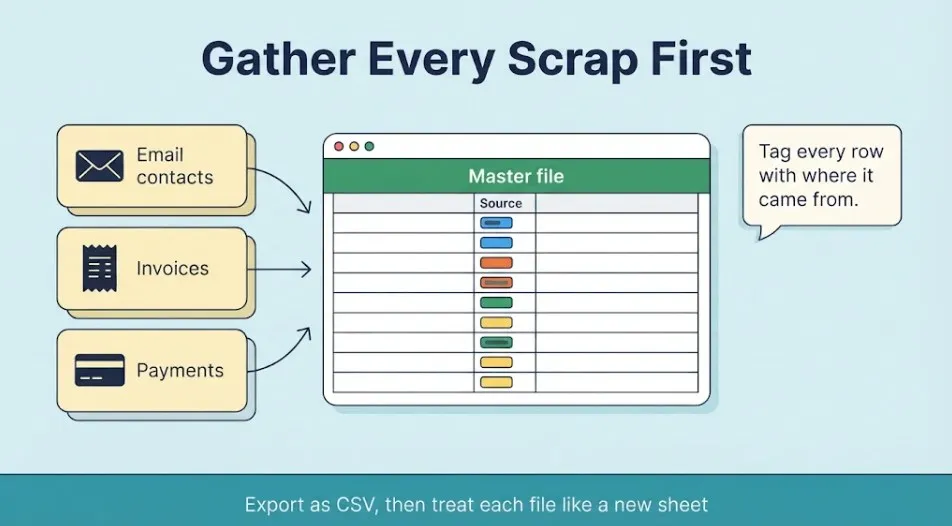
Your spreadsheet rarely holds the full picture. Payment history sits in your billing tool. Email contacts sit in Gmail. Invoices sit in your accounting software. Pull each one out as a CSV file and treat it like another spreadsheet.
| Source | What to export | Watch out for |
|---|---|---|
| Gmail / Google Contacts | Names, emails, phone numbers | Many “contacts” are one-time senders. Export only real customers. |
| QuickBooks | Customer list, invoices, balances | Company names may differ from the names in your spreadsheet. |
| Stripe | Customer list, payment history | Export without payment method details. You do not need them in a CRM. |
| Email tool (newsletter) | Subscribers, opt-in status | Keep the unsubscribe status. Do not re-add people who opted out. |
| Online store | Order history, product bought | One customer can have many orders. Decide if you import orders or only totals. |
Stripe lets you choose which columns to include when you export. Its support team explains how to export customer data without payment details, which is the safer option for a CRM.
Add a column called Source to each export, such as “Stripe” or “Gmail.” When two files list the same person, this tells you which record to trust. For deeper background on connecting tools like these, see our overview of business management software.
Step 4: Map Your Columns to CRM Fields
Mapping means telling the CRM which column goes into which field. “Email Address” in your sheet should land in the CRM’s Email field. Most CRMs guess this automatically, but they guess wrong often enough that you should check every column.
Here is a sample mapping table. Copy it into a new tab and fill in your own columns before you import.
| Your spreadsheet column | CRM field | Field type | Fix before import |
|---|---|---|---|
| Full Name | First Name + Last Name | Text | Split into two columns |
| Text (unique) | Remove duplicates, check typos | ||
| Mobile | Phone | Phone | One format, include country code |
| Company | Company Name | Text | Same spelling everywhere |
| Customer Since | Create Date | Date | One date format |
| Type | Lifecycle Stage / Status | Dropdown | Values must match the CRM’s options exactly |
| Last Order Total | Deal Amount | Number | Remove currency symbols and commas |
| Notes | Notes | Long text | Keep short, remove line breaks if import fails |
Pay extra attention to dropdown fields. If your CRM only allows “Lead,” “Customer,” and “Partner,” a row that says “Client” can fail. HubSpot notes that imported values must match the property’s defined options, so fix labels in the sheet first.
If you need a field your CRM does not have, create a custom field before you import. Do not cram two kinds of data into one column.
Step 5: Run a Small Test Import
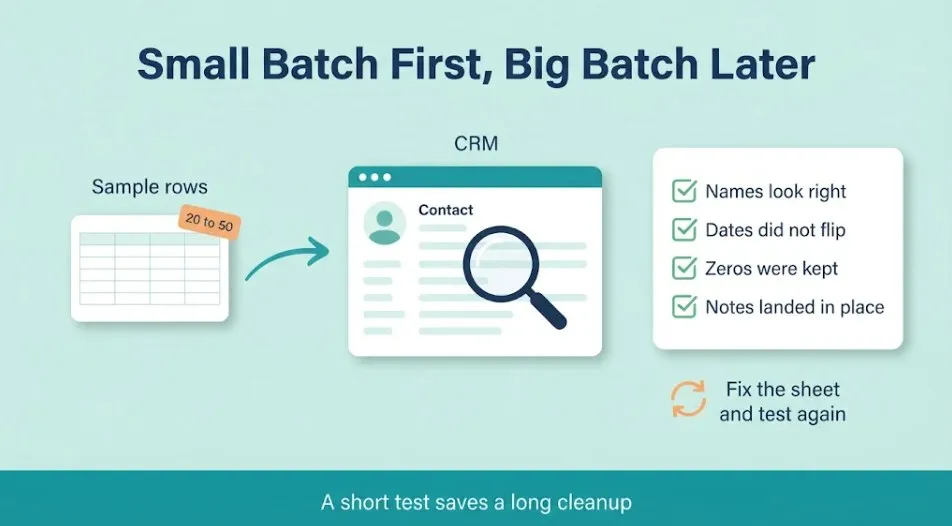
The golden rule of how to move customer data into a new CRM is simple: never import your full list first. Pick 20 to 50 rows and import only those. Include a mix: a clean record, a record with a long note, one with a missing phone number, and one with an odd name or accent.
After the test, open five records in the CRM and compare them to your sheet, field by field. Check these things:
- Names are split correctly and special characters look right
- Dates did not flip (03/04 should not become 04/03)
- Phone numbers kept their leading zeros
- Notes and deal amounts landed in the right place
If something is wrong, delete the test records, fix the sheet, and test again. A 10-minute test is cheaper than a 3-hour cleanup.
Step 6: Import, Verify, and Keep Your Old Files as a Safety Net
Once the test passes, you are ready for the final part of how to move customer data into a new CRM: the full import. If your list is large, check your plan’s limits first. Some CRMs cap file size or rows per day, and HubSpot lists these limits by plan in its import documentation.
Then verify in this order:
- Compare the count. Your CRM total should match the row count you wrote down in Step 1.
- Read the import report. Look for skipped rows and errors. Fix them and re-import only the failed rows.
- Spot-check 10 random records. Include your biggest customers.
- Search for known people. Look up three customers you know well and confirm their history is there.
Keep your old files: Do not delete your spreadsheets. Store the original and the cleaned version for at least 90 days, and longer if your records are needed for tax or legal reasons. They are your undo button.
Privacy, Consent, and How Long to Keep Customer Data
A CRM move is a good moment to check your data habits. You are about to put all customer data in one place, which makes it a bigger target and a bigger responsibility.
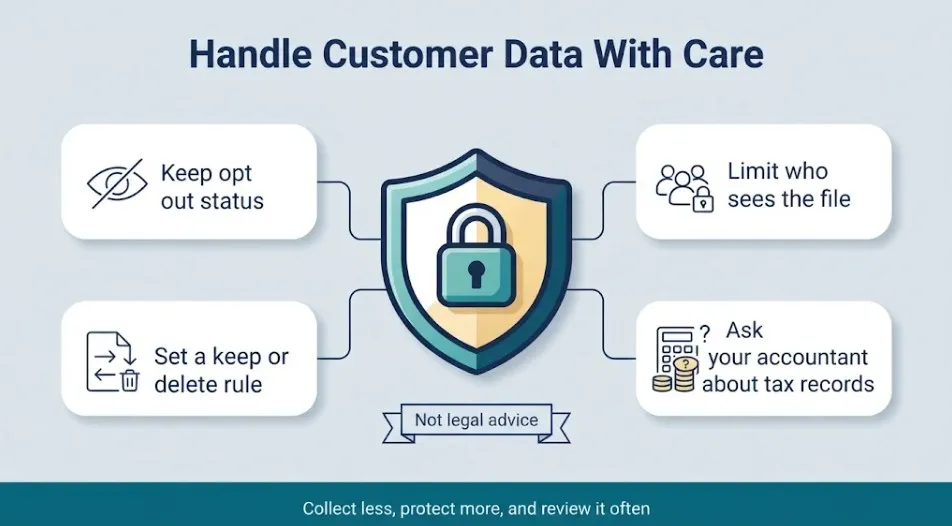
Consent. If you email customers for marketing, make sure you have the right to do so. In the US, the FTC’s CAN-SPAM guide for business says the law covers business-to-business email too, and that you must honor opt-outs within 10 business days. If you serve customers in the EU, the rules are stricter. The GDPR overview is a good plain-language starting point.
Opt-outs. Import the unsubscribe status along with the email. Re-adding someone who opted out is one of the fastest ways to get a complaint.
Retention. Keep data only as long as you have a reason to. A simple rule many small businesses use: keep active customers while they buy, keep inactive contacts for a set period (for example 2 to 3 years), then review or delete. Tax and accounting records often have their own minimum periods, so ask your accountant.
Access. Give team members only the access they need. A part-time helper does not need your full export file. This is not legal advice. If you handle sensitive data or sell across borders, talk to a qualified professional.
5 Import Mistakes That Quietly Break Customer Records
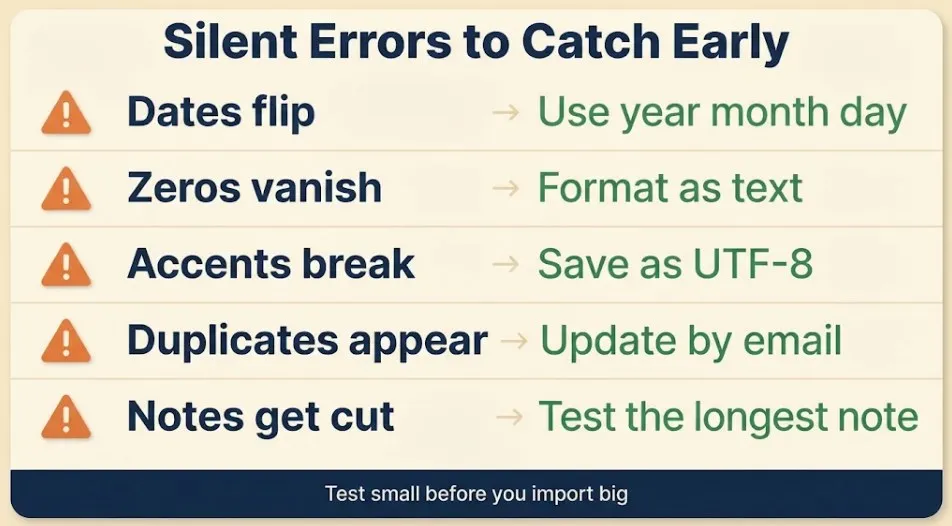
Even with a clear plan for how to move customer data into a new CRM, these mistakes rarely show an error message. The import “works,” and the damage appears weeks later.
- Flipped dates. A customer since 03/04/2024 becomes 4 March instead of 3 April. Your “new customer” reports are now wrong. Fix: use YYYY-MM-DD.
- Lost leading zeros. A phone number like 012 345 678 becomes 12345678 because the spreadsheet saw a number, not text. Fix: format the column as text before you export.
- Broken characters. Names like “José” or “Nguyễn” turn into strange symbols. This is usually a file-encoding problem. Fix: save the CSV as UTF-8.
- Duplicates created on re-import. You fix errors and import the whole file again, and now every customer exists twice. Fix: re-import only failed rows, or use the CRM’s “update existing records” option with email as the match.
- Notes cut off. Long notes get trimmed or break the row because of commas and line breaks inside the cell. Fix: test your longest note in the small import.
Most of these are caught in Steps 2 and 5. That is why those steps matter more than the import itself.
What to Do in Your First Week After the Move
Knowing how to move customer data into a new CRM is only half the job, because importing is not the finish line. The first week decides whether your team actually uses the CRM or goes back to the spreadsheet.
- Day 1: Freeze the old spreadsheet. Mark it “read only” so nobody keeps editing it.
- Day 2: Hold a 30-minute walkthrough. Show people where to find a customer and how to add a note.
- Days 3 to 4: Set up your sales stages. These CRM pipeline examples can save you time.
- Day 5: Start logging calls and emails in the CRM. Our guide on how to log sales calls in a CRM shows a simple routine.
- End of week: Ask your team what is missing or confusing. Fix the top three issues.
Once the data is stable, consider automating repeat work such as follow-up reminders. See these CRM automation examples for ideas that fit small teams.
Free Customer Data Migration Checklist
Copy this list into a note or document and tick each item off.
Before the import
- ☐ Saved a dated, read-only copy of every file
- ☐ Wrote down the row count of the master sheet
- ☐ Removed duplicates and dead contacts
- ☐ Split names, fixed dates and phone numbers
- ☐ Exported Gmail, QuickBooks, Stripe and other tools
- ☐ Added a Source column to each file
- ☐ Mapped every column to a CRM field
- ☐ Checked consent and opt-out status
During and after
- ☐ Ran a test import of 20 to 50 rows
- ☐ Checked five test records field by field
- ☐ Ran the full import
- ☐ Compared the CRM count to the original count
- ☐ Reviewed the import error report
- ☐ Spot-checked 10 records and 3 key customers
- ☐ Kept the old files for at least 90 days
- ☐ Froze the old spreadsheet and trained the team
How to Move Customer Data Into a New CRM: Frequently Asked Questions
How long does it take to move customer data into a new CRM?
For a small business with a few thousand contacts, plan for one to three days. Most of that time goes into cleaning, not importing. The import itself often takes minutes. A messy spreadsheet with many sources can take a week.
Can I undo a CRM import?
It depends on the CRM. Some tools let you delete everything from a specific import, and others do not. Check this before you start. Either way, keep your original files and run a small test first, so you never need to undo a full import.
Do I need outside help to migrate my data?
Usually not. If your data is in one or two spreadsheets and you follow the steps above, you can do it yourself. Consider help if you have tens of thousands of records, several systems to merge, or strict privacy rules in your industry. Many CRM vendors also offer free import support.
Should I import all my old customers or only active ones?
Import active customers and recent leads for sure. For older contacts, import only those with a purchase history or a useful note. Keep the rest in your archived spreadsheet. A smaller, clean CRM is easier to use. Our post on when you need business software explains why a tidy system matters as you grow.
What file format should I use for the import?
CSV is the safest choice. Almost every CRM accepts it. Save it as UTF-8 so names with accents display correctly. Excel files also work in many tools, but keep one sheet per file.
What if my CRM and spreadsheet use different field names?
That is normal. You do not need to rename every column, but you must map each one during import. Use the mapping table in Step 4 to plan this ahead. If a field does not exist in the CRM, create a custom field first.
Final Thoughts: How to Move Customer Data Into a New CRM
Learning how to move customer data into a new CRM is not hard, but it does need order. Back up first. Clean second. Test third. Import last. If you follow that sequence, you protect an asset your business cannot easily rebuild: your customer relationships.
Start with your backup today, and write down your row count. For the bigger picture of how these tools fit together, read our guides on business software for small business, organizing business operations with software, and how to manage business tasks.
